
Account and purchases
Applies to: iPhone, iPad and Mac 1.3.7
This chapter covers creating an account, syncing shows, plans and purchases, and deleting your account. You can use the timer and edit cue sheets without an account.
What you can do with an account
| Feature | Without an account | With an account |
|---|---|---|
| Timer, cue sheet editing, messages, performer screen | ✓ | ✓ |
| Save shows to your account and sync them with your other devices | — | ✓ |
| Join a share over the internet (client) | — | ✓ |
| Receive from a nearby host (nearby sync) | ✓ | ✓ |
| Create with AI | — | ✓ |
| Buy and restore Pro, Pro 1 Day, and AI credits | — | ✓ |
During a sign-up campaign, new accounts receive Create with AI uses (the period and number of uses are shown in the app's announcements).
Create an account or sign in
- At the top right of the show list, tap the person icon (Account)
- Tap Sign in
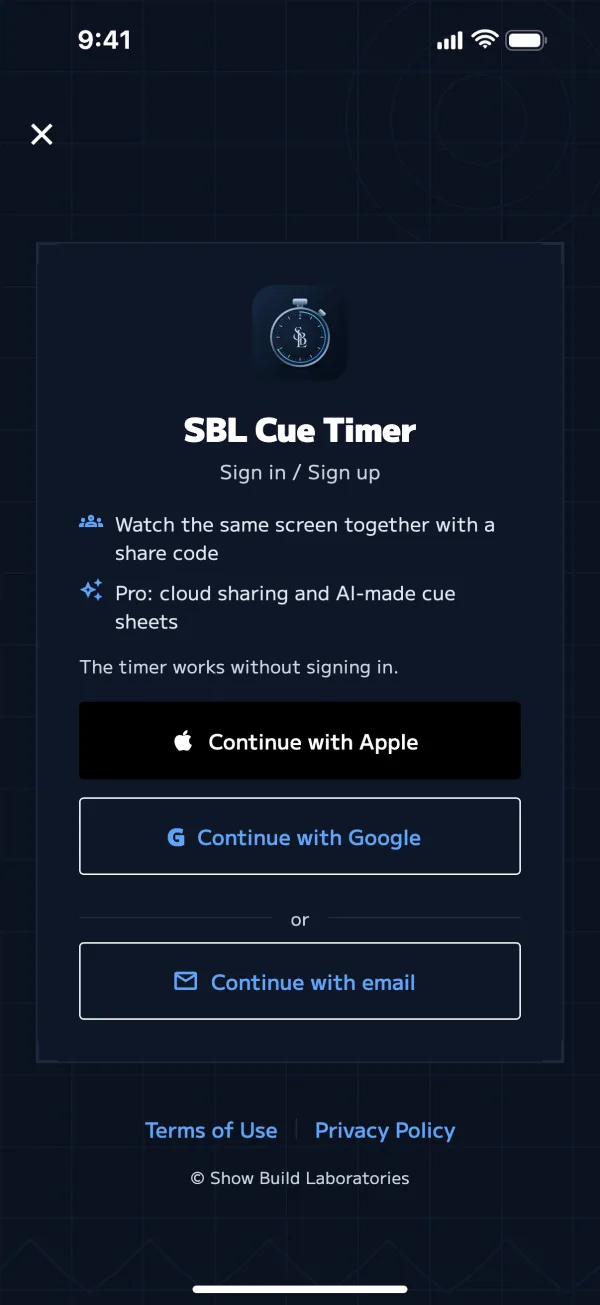
- On "Sign in / Sign up", choose a method
- Continue with Apple
- Continue with Google
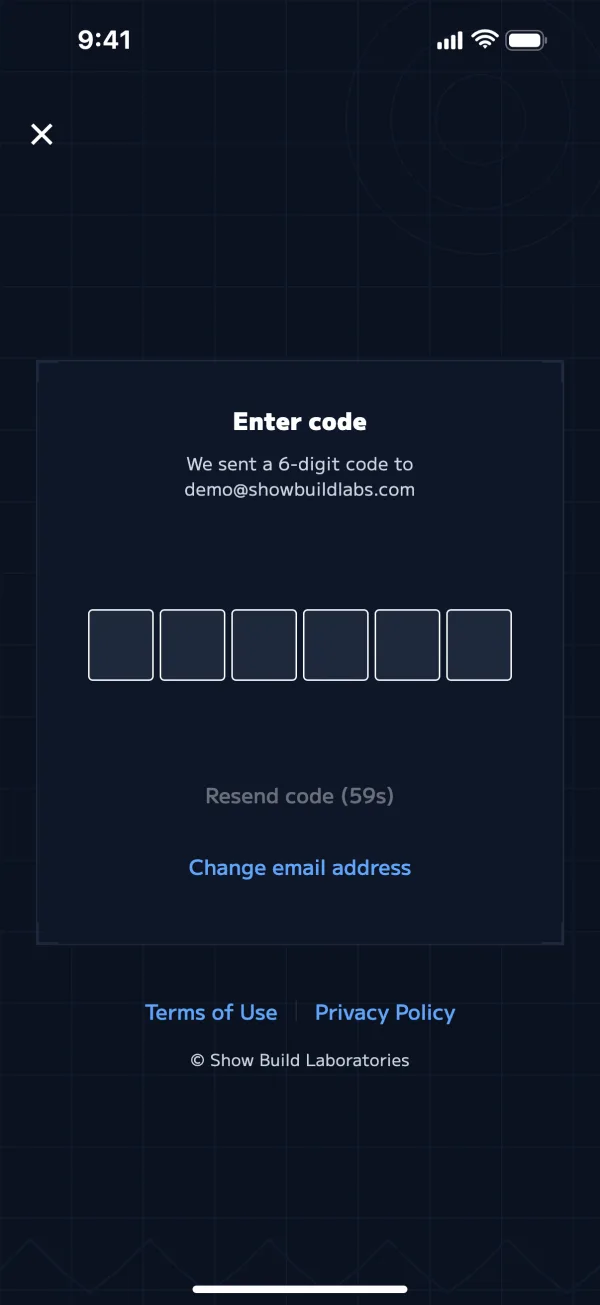
- Continue with email → enter your email address, tap Send code, then enter the 6-digit code you receive
- If you're new, your account is created automatically
This screen also opens when you do something that needs an account, such as Create with AI, joining a share, or making a purchase. After you sign in, you return to what you were doing.
| Problem | Solution |
|---|---|
| The code doesn't arrive | Check your spam folder. After 60 seconds, tap Resend code |
| You entered the wrong email address | Change email address |
| You want the same account as on your other device | Sign in with the same method as before (Apple / Google / the same email address) |
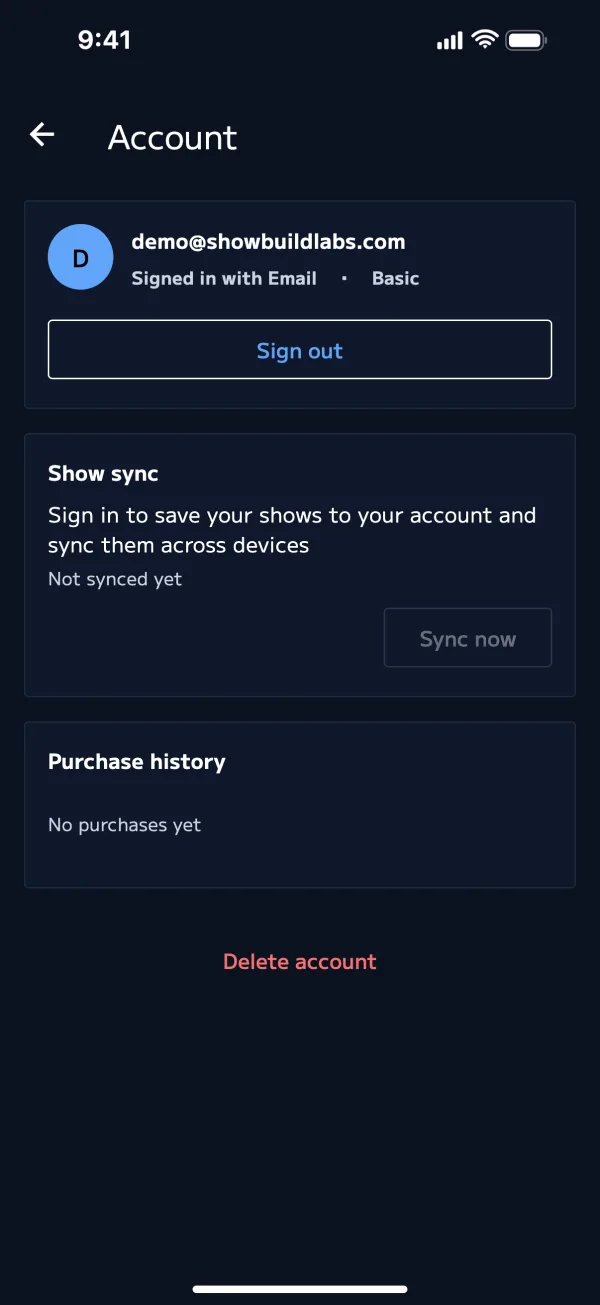
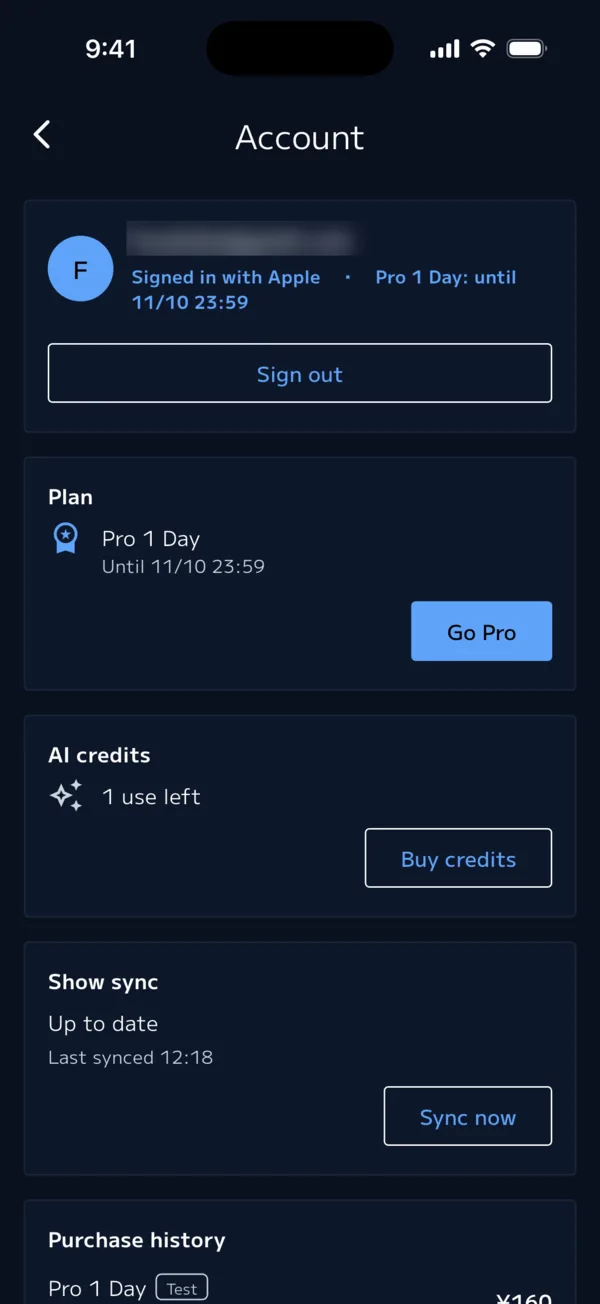
Account screen
Open it from the icon at the top right of the show list. Once you sign in, the icon changes to a circle with your initial (Pro adds a star at the bottom right).
| Section | What's in it |
|---|---|
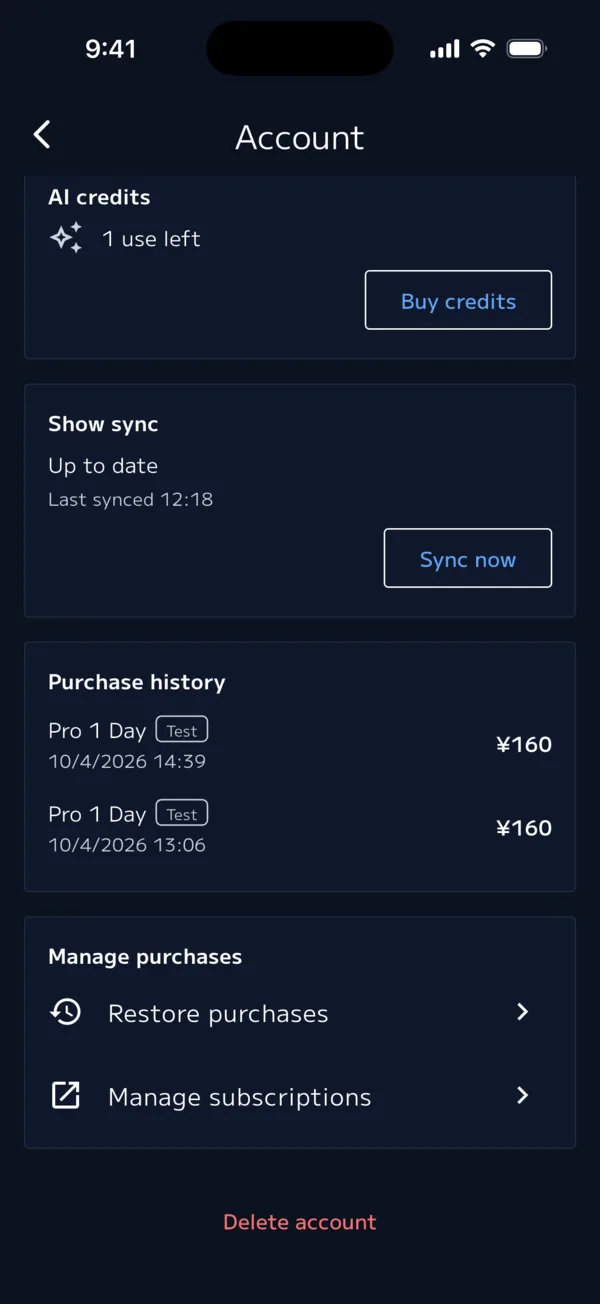
| Account | Your sign-in method and current plan (Basic / Pro plan). Sign out |
| Plan | Your current plan. Go Pro / on Pro, the next renewal date and Manage |
| AI credits | Remaining uses of Create with AI. Buy credits |
| Show sync | Sync status, Sync now |
| Purchase history | Your past purchases. See all |
| Manage purchases | Restore purchases, Manage subscriptions |
Show sync
When you sign in, your shows are saved to your account, and you can open the same shows on any iPhone, iPad, or Mac signed in to the same account. This works on Basic too.
- If the device you first sign in on already has shows, you're asked "Save ◯ shows on this device to your account?". Choose Save or Keep on this device only
- If the same show is edited on two devices, the more recently edited one is kept
- The sync status appears at the top right of the show list. If sync isn't working, tap Sync now on the Account screen
- If you see "You've reached the show limit.", the extra shows stay on that device only
For instant syncing of edits and the live run between devices on the same account, see Sharing (Mac is β).
Sign out
Tap Sign out on the Account screen. If you have synced shows, you're asked "Keep the ◯ synced shows on this device?".
| Choice | What happens |
|---|---|
| Keep on this device | The shows also stay on this device |
| Delete from this device | The shows are removed from this device. They stay in your account and come back the next time you sign in |
Plans and purchases
There are two plans: Basic (free) and Pro. Pro comes as monthly, annual, and Pro 1 Day, which lasts 24 hours. You can add more uses of Create with AI with AI credits.
For prices and what each plan includes, see Pricing.
- You need to be signed in to buy or restore purchases
- What you buy works on any iPhone, iPad, or Mac signed in to the same account
- To see when Pro 1 Day ends, check "Pro 1 Day: until ◯" on the Account screen
Restore purchases
If you switch devices or Pro doesn't show up, sign in with the account you bought it with, then tap Restore purchases on the Account screen.
Cancel
Tap Manage subscriptions on the Account screen, or go to the device's Settings → Apple ID → Subscriptions. Deleting your account does not cancel your subscription.
Delete your account
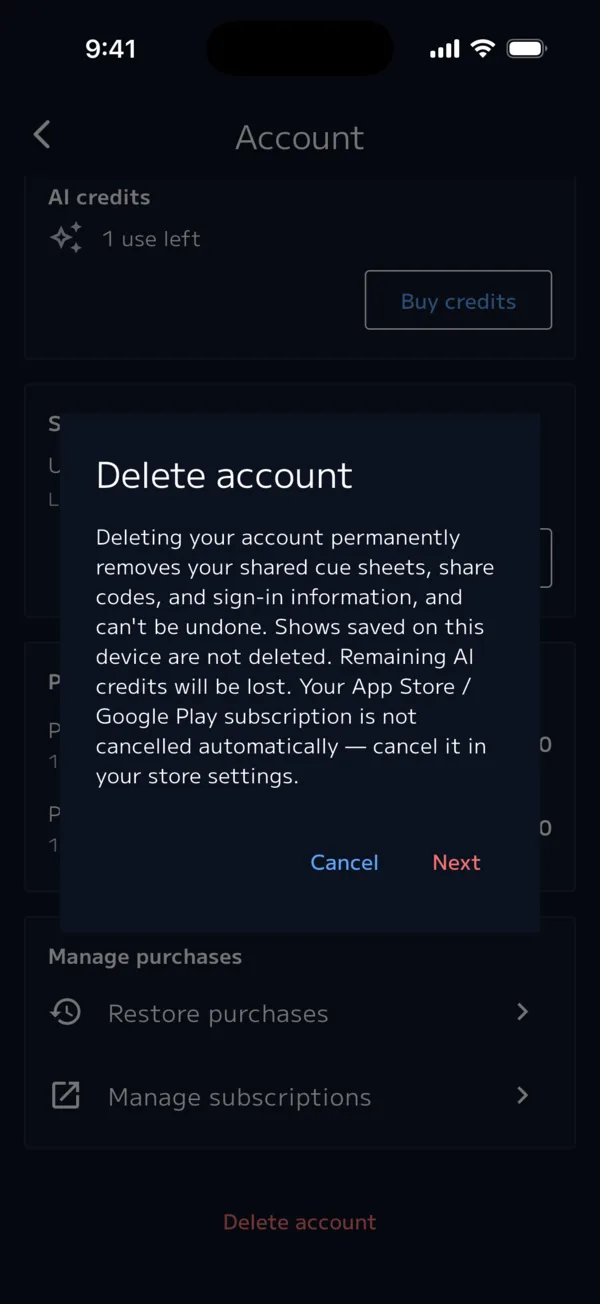
- At the very bottom of the Account screen, tap Delete account
- Check what will be deleted, then tap Next → Delete permanently
- Verify it's you: if you use email, enter the 6-digit code you receive and tap Verify and delete. If you use Apple or Google, sign in again and tap Sign in and delete
| Deleted | Not deleted |
|---|---|
| Shows saved to your account, shared cue sheets, share codes, sign-in information, remaining AI credits | Shows saved on this device |
Your subscription is not cancelled automatically. Cancel it first. If you can't use the app, email support@showbuildlabs.com with the email address you sign in with.