
Shows and cue sheets
Applies to: iPhone, iPad and Mac 1.3.7 (β (Mac) is on Mac from 1.3.7)
You build in this order: show → sheet → cue. For what the terms mean, see Getting started.
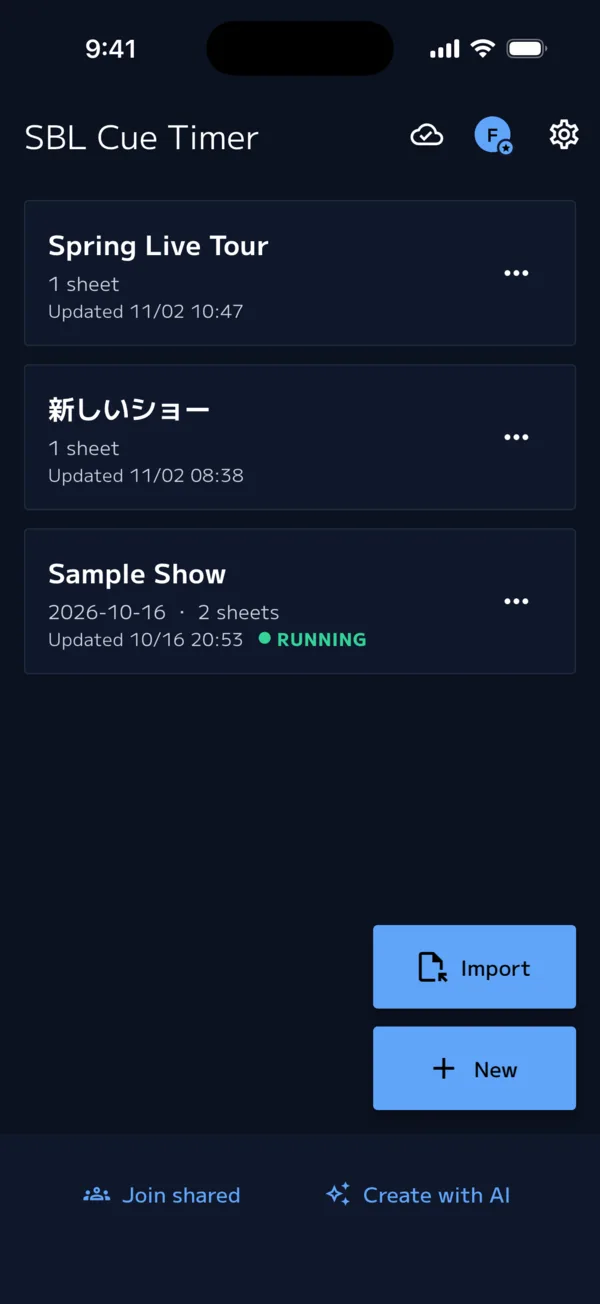
Show list
This is the first screen you see when you open the app.
| Where | What it does |
|---|---|
| Person icon at the top right | Account |
| Gear at the top right | Settings |
| New | Create a show |
| Import | Import a show from a file (below) |
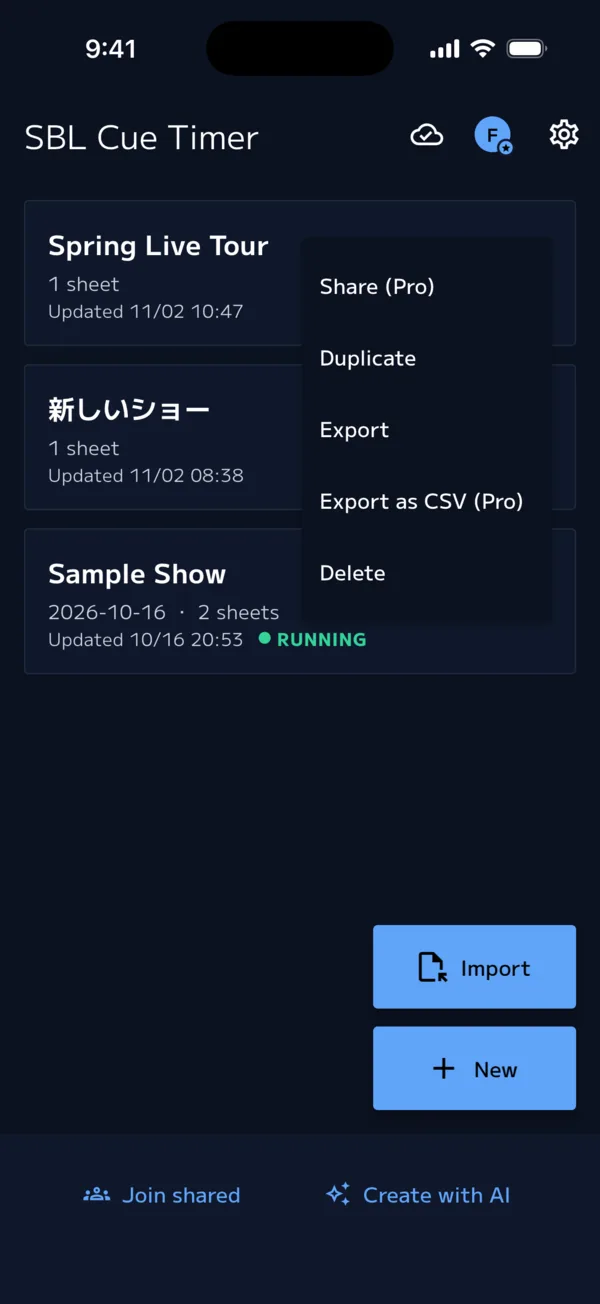
| Show card | Tap to open the sheet list. for Share (Pro) / Duplicate / Export / Export as CSV (Pro) / Delete |
| Join shared and Create with AI at the bottom | Sharing and Create with AI (before you sign in, these appear as the "Create an account to…" and "Build a CUE SHEET easily with AI" cards) |
Each card shows the date, the number of sheets and when it was last updated. A show that's running is marked RUNNING, and a show being shared is marked SHARE. Pull down to reload the list (if sync is on, it syncs right away).
When there are no shows, you'll see "No shows yet" with New and Import a .showcue file.
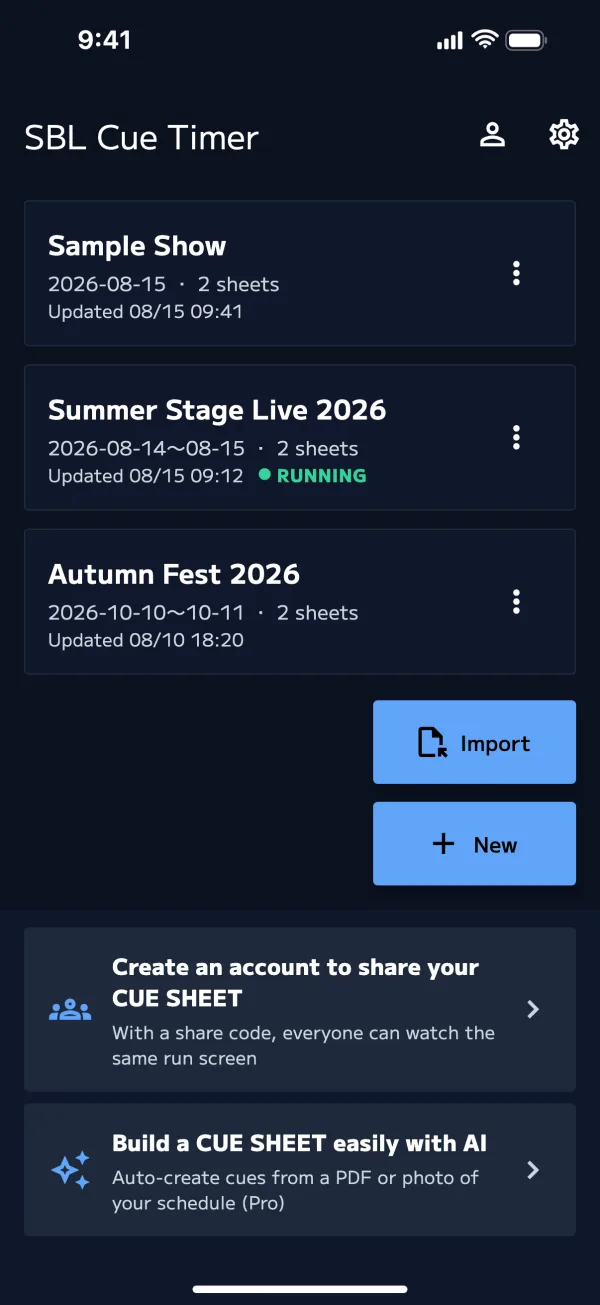
Create, duplicate or delete a show
- New → enter a show name and tap Create. One sheet called "Main" is created, and the sheet list opens
- Card → Duplicate makes "Copy of ◯◯"
- Card → Delete. This can't be undone, so you'll be asked to confirm
Basic allows up to 3 shows and up to 2 sheets per show. Beyond that, you'll see "Your plan allows…". You can still open and edit the shows you already have. Pro has no limits (Pricing).
Sheet list β (Mac)
Opens when you tap a show.
| Action | What it does |
|---|---|
| Tap a sheet | Opens the editor. If the sheet is running, choose "Edit cues" or "Open run screen" |
| Drag ≡ | Reorder sheets |
| or long-press | Sheet settings |
| Add sheet | Adds a sheet with a name like "Sheet 2" |
| ⓘ at the top | Show info |
A running sheet can't be moved or deleted. Stop it first.

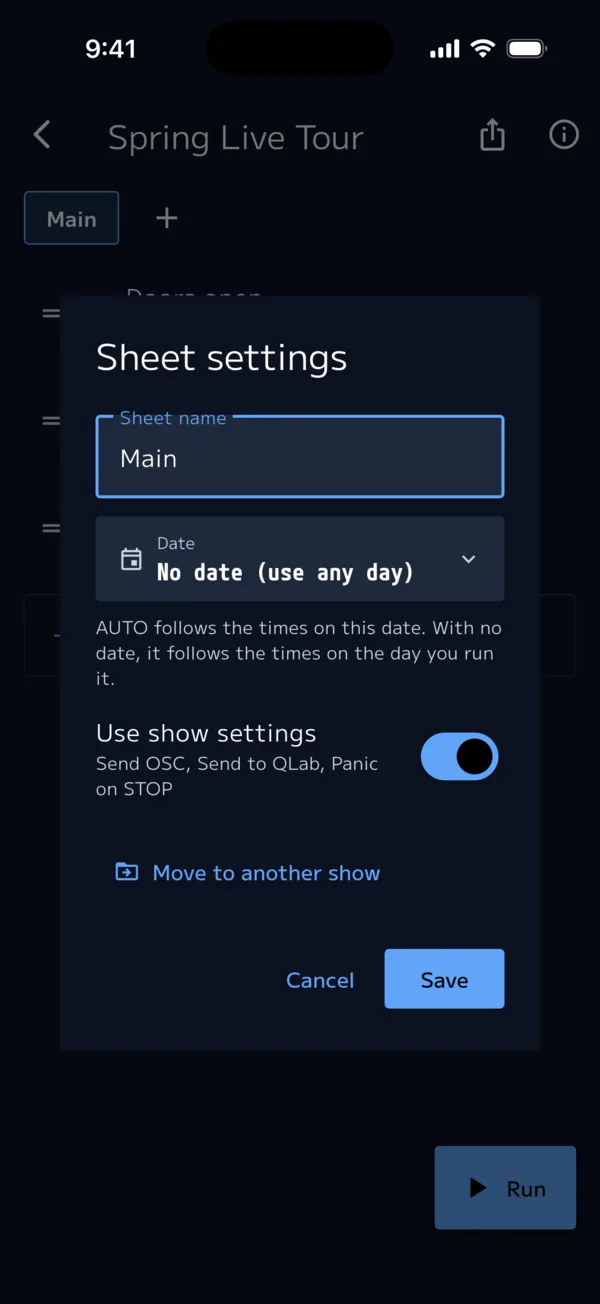
Sheet settings
| Item | What it does |
|---|---|
| Sheet name | The name shown on the tab and in the list |
| Date | "Time" cues run on this date's clock. Leave it empty for "No date (use any day)", and they run on the clock of the day you open it |
| OSC | Turn off "Use show settings" to change how this sheet alone sends OSC and QLab (Pro, QLab and OSC) |
| Move to another show | Moves this sheet to another show. If you move the last sheet, the original show is deleted |
| Delete | Deletes the sheet and its cues (when there are 2 or more sheets) |
Editor
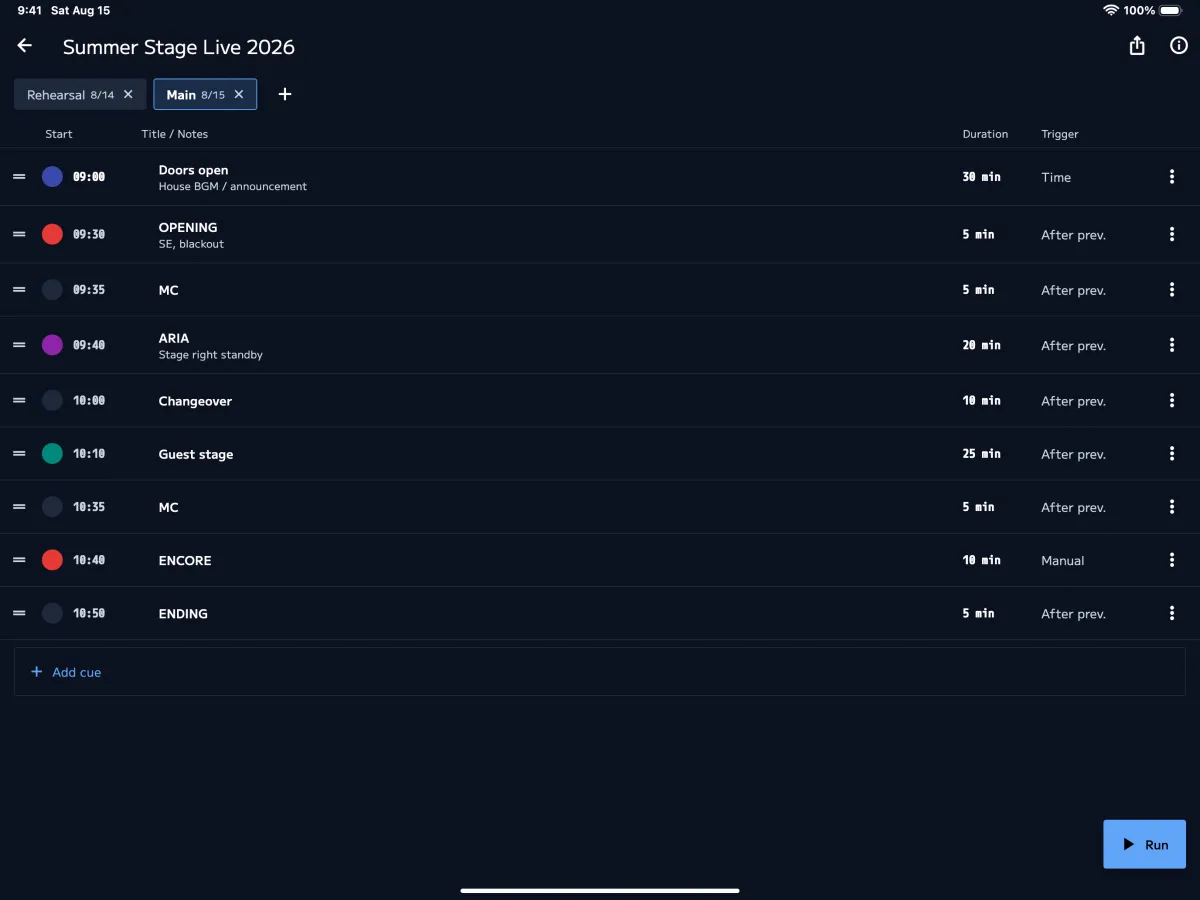
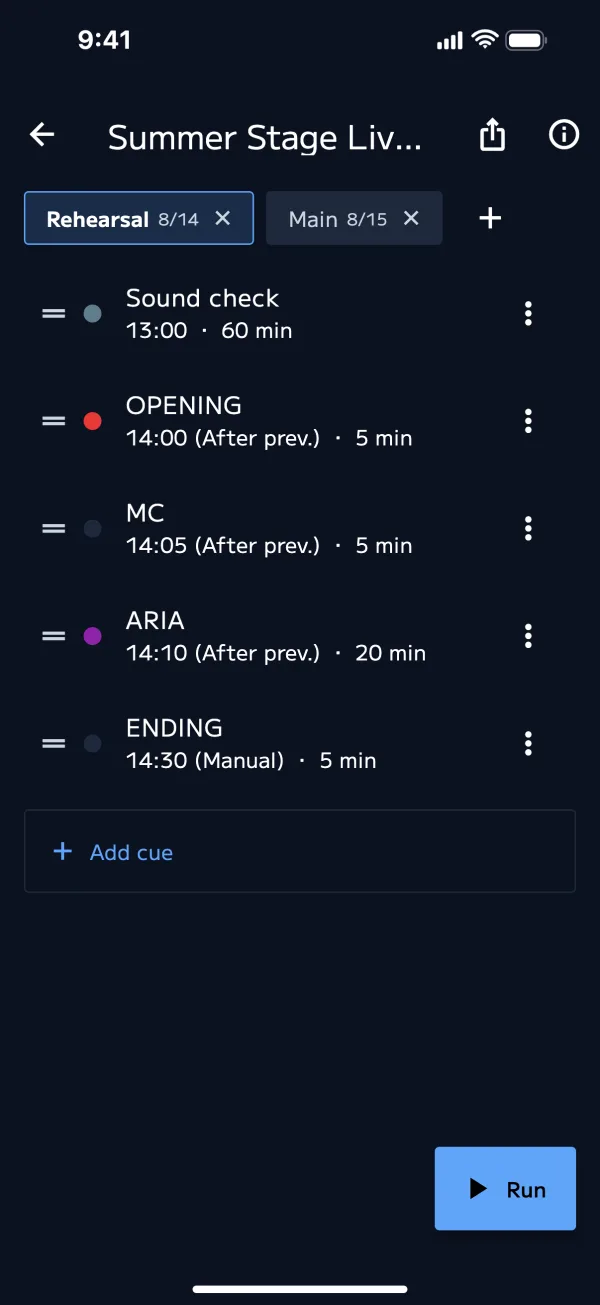
Opens when you tap a sheet. Sheet tabs are at the top, the cue list below, and Run at the top right.
- Long-press (or double-tap) a tab for sheet settings
- Tap + on the tabs to add a sheet. Tap × to delete a sheet
- If you see "No cues" or "The first cue has no start time", add cues or give the first cue a start time (without one, it starts at the "Base time" in Show info)
On iPad in landscape and on Mac it shows a table; on iPhone it shows a list.
| Action | iPad and Mac (table) | iPhone (list) |
|---|---|---|
| Add a cue | Add cue in the last row | Add cue in the last row |
| Edit | Tap start, duration, trigger or color to edit in place. Tap the title to edit it | Tap the row |
| Reorder | Drag ≡ | Drag ≡ |
| Duplicate / delete | → Duplicate / Insert below / Move up / Move down / Edit details / Delete | → Duplicate / Delete. You can also swipe left or right to delete |
A duplicated cue is placed right below the original.
Cue fields
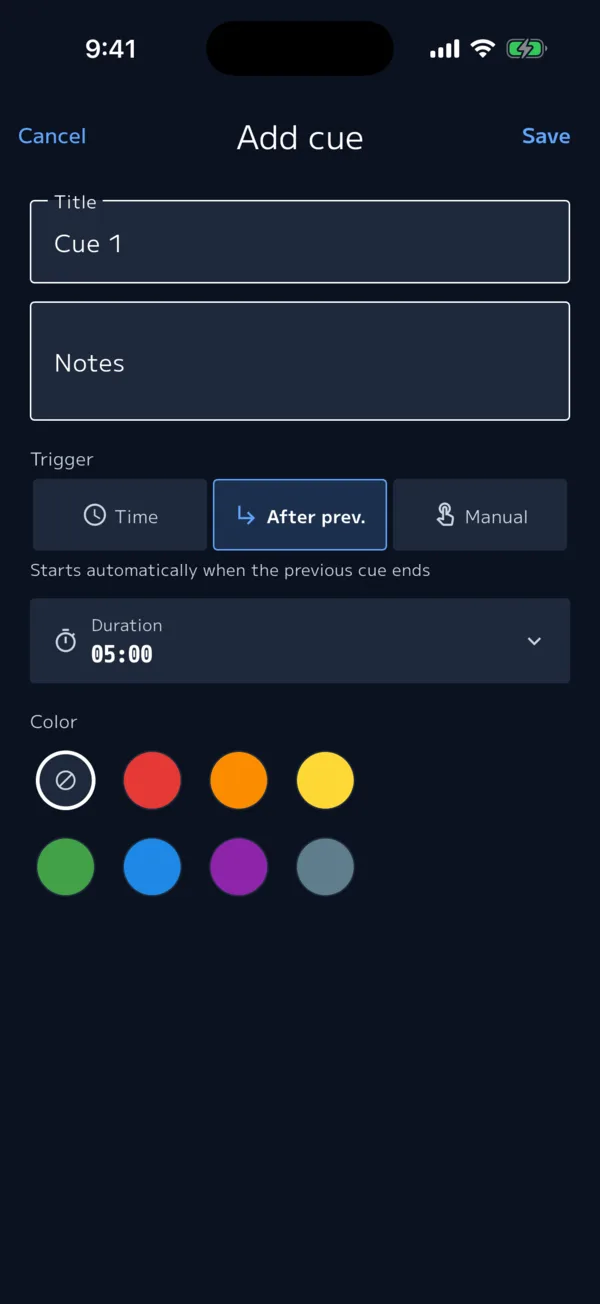
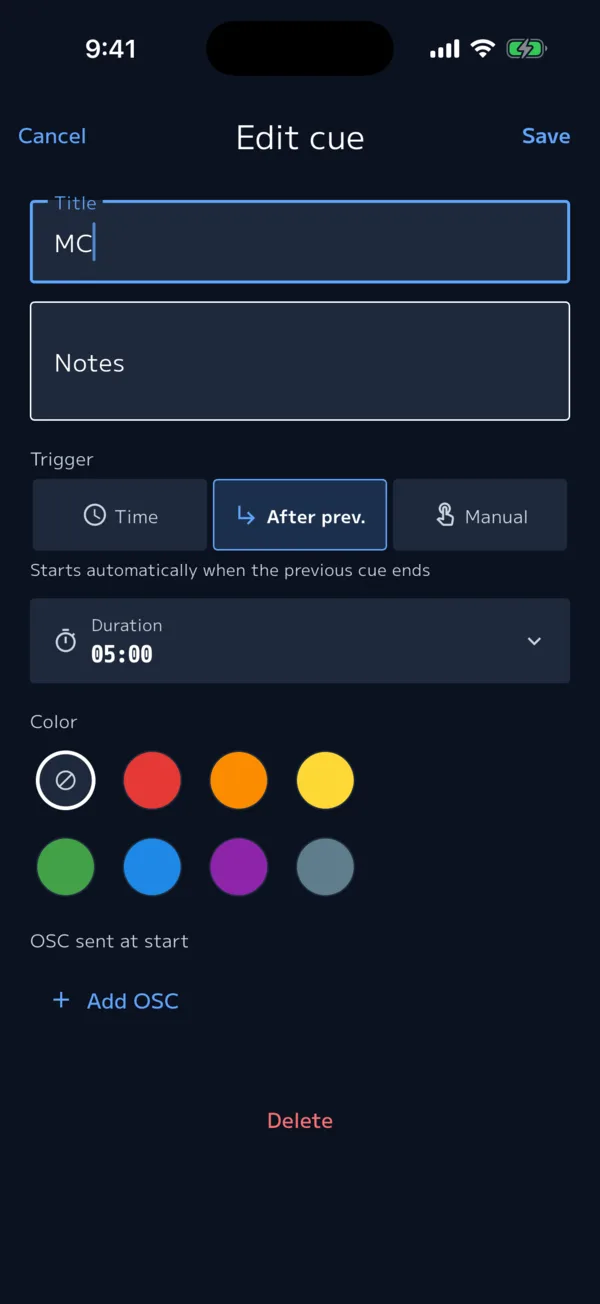
Enter these on the Add cue / Edit cue screen.
| Field | What it does |
|---|---|
| Title | The segment name. Also shown large on the performer screen |
| Notes | Notes for yourself (up to 2 lines visible) |
| Trigger | Time (starts automatically at the set time) / After prev. (starts automatically when the previous cue ends) / Manual (starts when NEXT is pressed) |
| Start time | When the trigger is "Time". Past midnight it shows "(+1 day)" |
| Duration | How long the segment runs |
| Color | A color to tell cues apart in the list (optional) |
| Send to QLab | Only for shows with QLab link on (QLab and OSC) |
| OSC sent at start | OSC sent when the cue starts (Pro) |
- If the trigger is "Time" and there's no start time, you can't tap Save
- New cues get a name like "Cue 3" and the same duration as the previous cue (5 minutes if there isn't one)
- Start times for cues other than "Time" are calculated from the previous cue and shown dimmed
Entering times and durations (keyboard)
| Key | Duration | Start time |
|---|---|---|
| Numbers | Type directly | Type directly |
| ↑ ↓ | ±1 minute | Raise or lower the selected field |
| ← → | ±10 seconds | Move between hour, minute and second fields |
| Enter / Esc | Confirm / clear input | Confirm / clear input |
Show info (ⓘ)
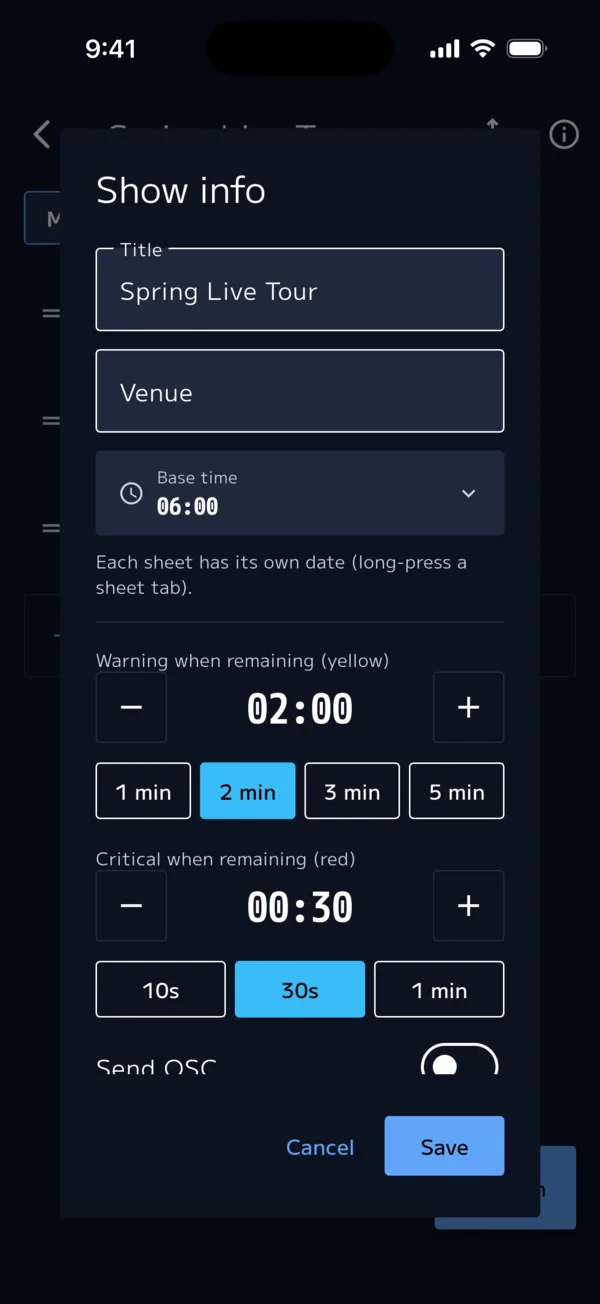
| Field | What it does |
|---|---|
| Title and Venue | The show's name and venue |
| Base time | If the first cue has no start time, the sheet starts here |
| Warning when remaining (yellow) | 2 minutes by default |
| Critical when remaining (red) | 30 seconds by default. Set it shorter than yellow |
| Send OSC, Send to QLab, Panic on STOP | Pro. QLab and OSC |
Import and export
| Format | What you can do | Plan |
|---|---|---|
| .showcue | Export or import a whole show. Use it to hand a show to someone else | Basic and up |
| CSV | Import or export a cue sheet made in Excel or similar | Pro |
| Template (CSV) | Export a sample showing the format | Basic and up |
- Export: Show card (or the share icon in the sheet list) → Export / Export as CSV (Pro). With 2 or more sheets, choose "All sheets" or a single sheet
- Import: Import in the show list → "Import a .showcue file", "Import from CSV (Pro)", "Export template"
- Save CSV files as UTF-8 (in Excel: "CSV UTF-8"). Shift_JIS files can't be read
- Before a CSV is imported, a screen shows the number of sheets and cues for you to check. Rows that can't be read are skipped
- The CSV columns are listed in a table in the FAQ
To build from a PDF or photo of your cue sheet, use Create with AI.
Sample Show
Added only the first time you open the app. "Rehearsal" is set to start 1 to 2 minutes after that launch, and "Main" 1 hour after that. If you delete it, it won't come back. It counts toward Basic's show limit (3).