
Getting started
Applies to: iPhone, iPad and Mac 1.3.7 (β marks features in a version that isn't released yet. β (Mac) means it works on iPhone and iPad now and is on Mac from 1.3.7.)
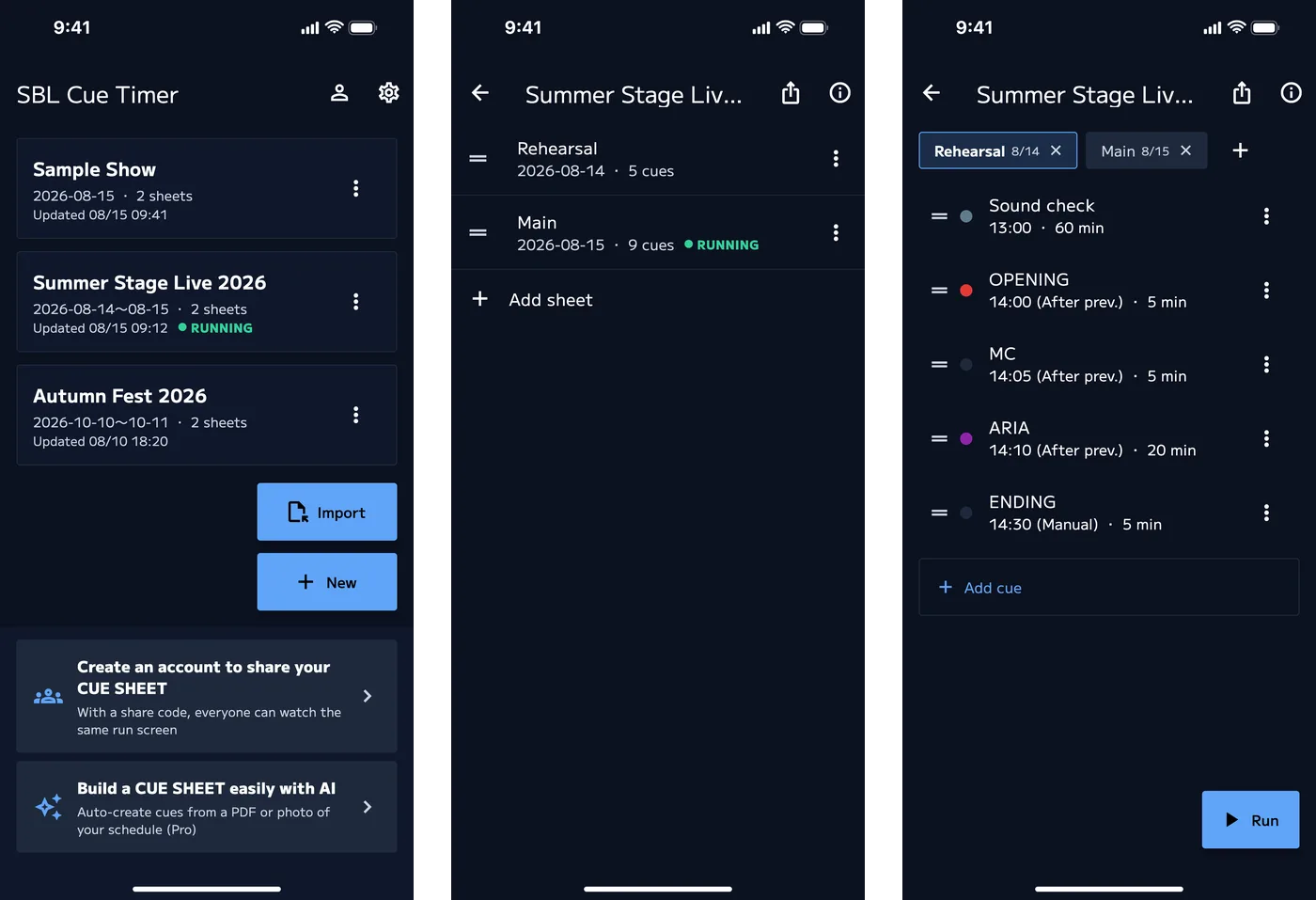
SBL Cue Timer is a timer that runs your show as a list of cues (segments). Build your cue sheet, then press NEXT to advance during the show. The screen shows the remaining time, the next cue, and whether you're behind or ahead.
The steps are as follows.
Terms
| Term | Meaning | Example |
|---|---|---|
| Show | One performance or event | "Spring Recital" |
| Sheet | One cue sheet within a show | "Rehearsal", "Main" |
| Cue | One row of the sheet. One segment | "Opening announcement, 3 min" |
1. Create an account
The timer works without an account. An account is required for sync, joining shares, Create with AI and purchases. Accounts are free.
What you can do with an account
- Sync with your other devices: Shows are saved to your account, so you can open the same shows on any iPhone, iPad or Mac signed in to it
- Keep shows when you switch devices: Shows saved to your account stay there even if you sign out
- Join shares over the internet: View someone else's run screen with a share code or QR code
- Use Create with AI and purchases: You need an account to build cue sheets with AI, and to buy or restore Pro or AI credits. What you buy works on every device signed in to the same account
- Sign-up campaign: While a campaign is running, new users get Create with AI uses (see the in-app notices for dates and counts)
How to create one
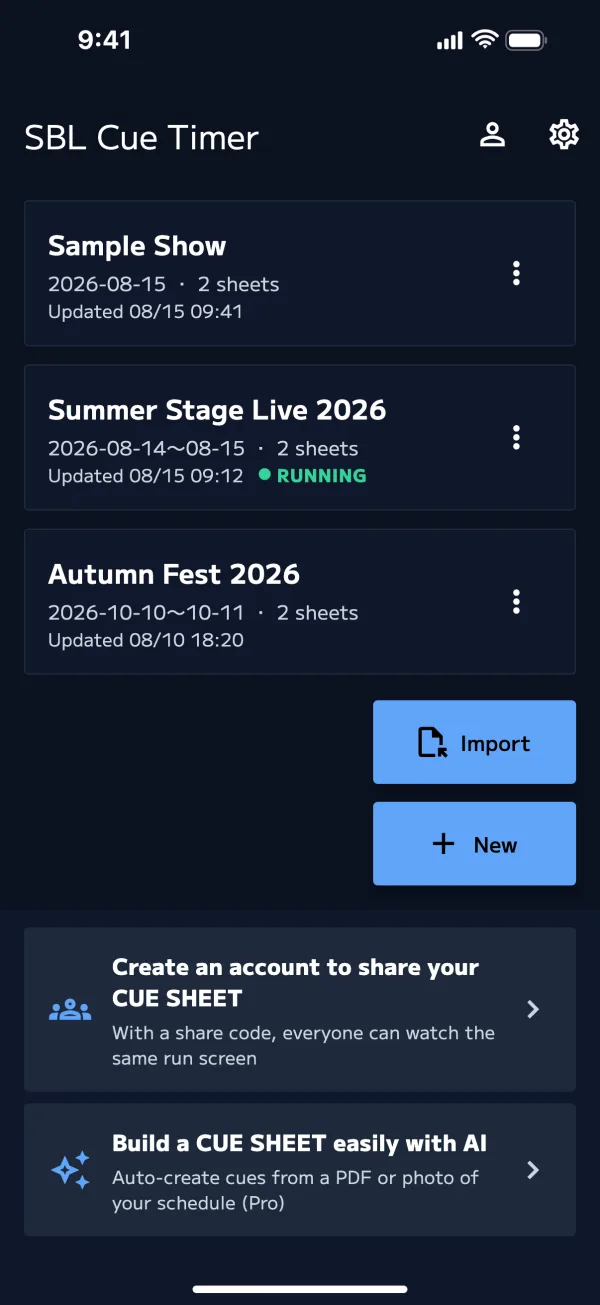
- In the show list, tap the person icon (Account) at the top right
- You can also start from "Create an account to share your CUE SHEET" at the bottom of the screen
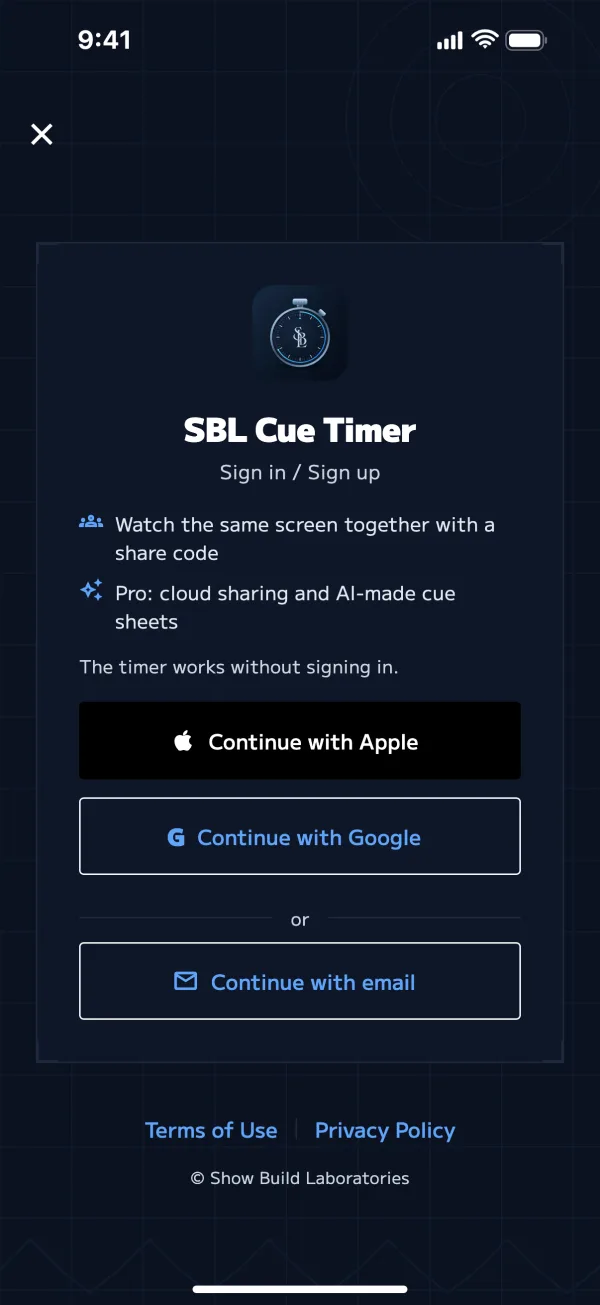
- On the Account screen, tap Sign in
- On the "Sign in / Sign up" screen, choose one method
- Continue with Apple
- Continue with Google
- Continue with email: Enter your email address and tap Send code → enter the 6-digit code from the email
- If you're new, your account is created right away. If you already have one, you're signed in
If the email code doesn't arrive, you can tap Resend code after 60 seconds. Check your spam folder too.
If there are shows on this device, you'll be asked "Save ◯ shows on this device to your account?" To use them on other devices, tap Save. To use them only on this device, tap Keep on this device only.
For details, see Account and purchases.
Try the sample
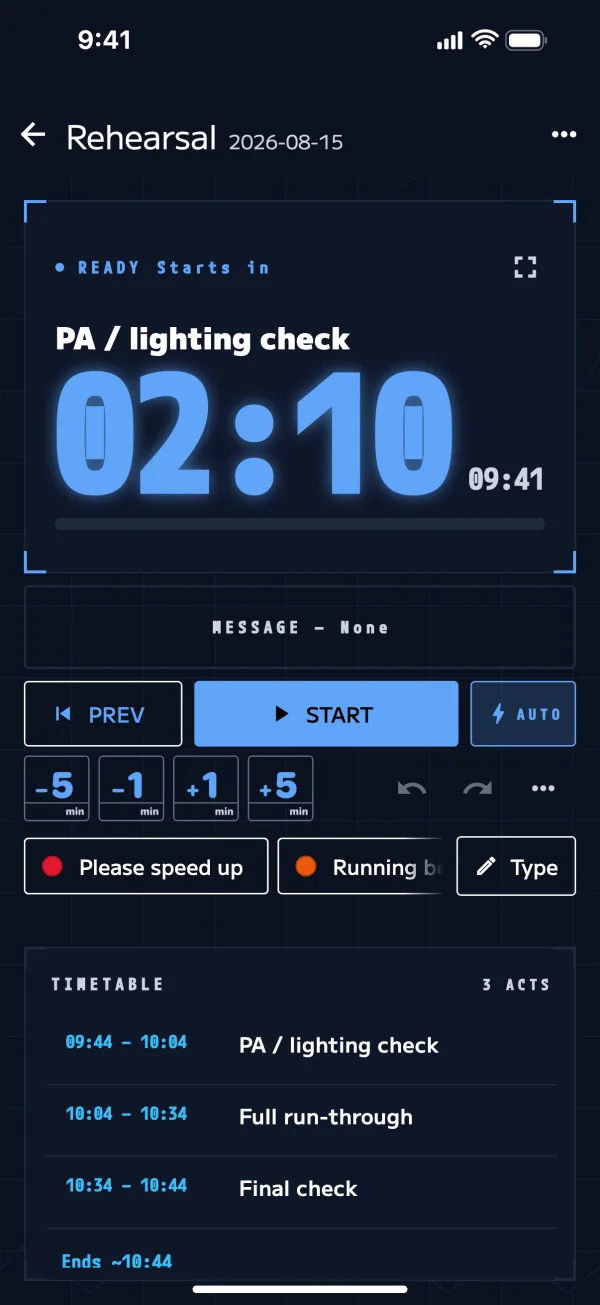
The first time you open the app, the show list includes a "Sample Show". Its rehearsal sheet is set to start 1 to 2 minutes after that first launch.
- Tap "Sample Show" → "Rehearsal"
- Press Run
- At the start time, it starts automatically with AUTO. To start without waiting, or if the time has already passed, press START
2. Create a show
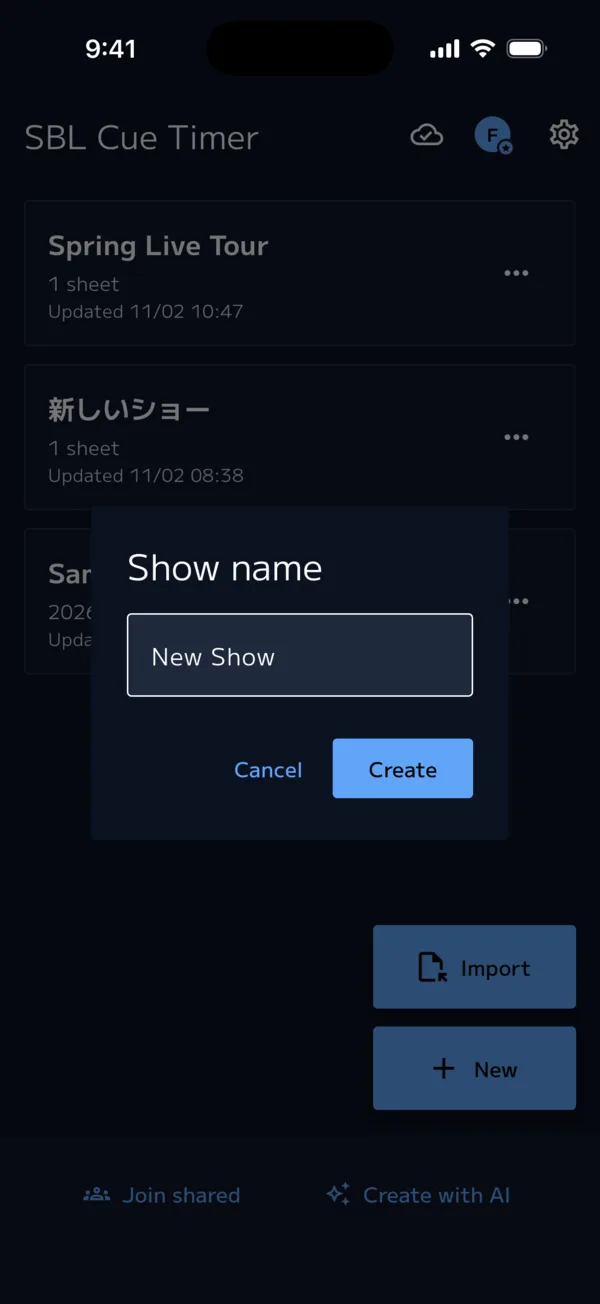
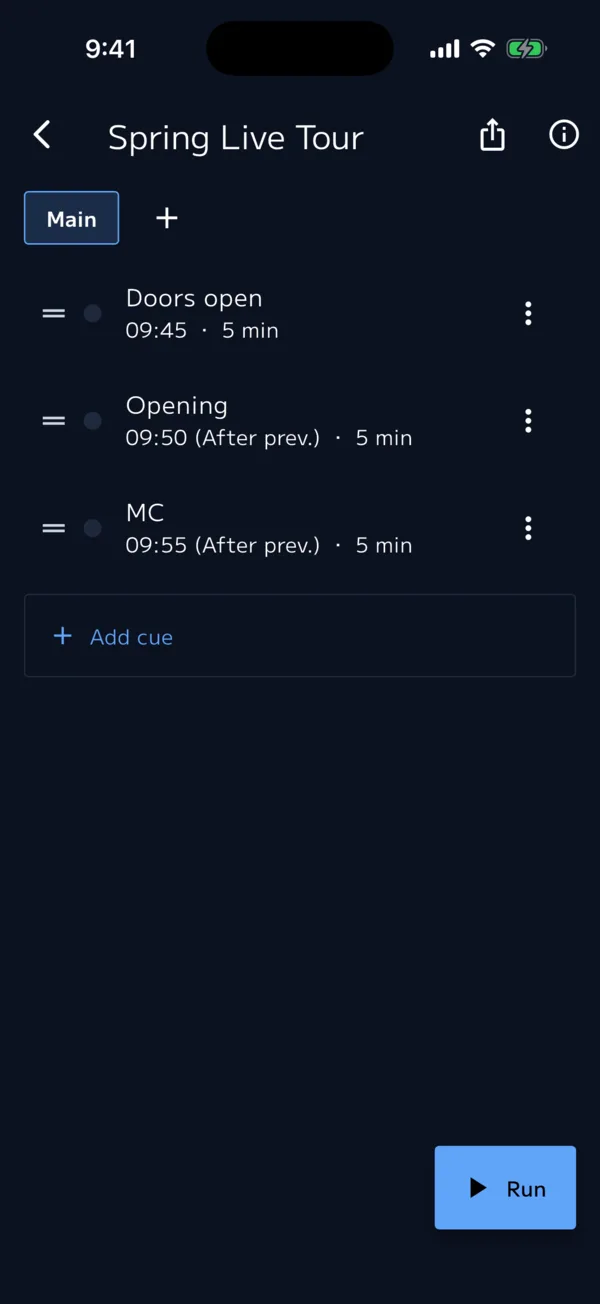
- In the show list, tap New → enter a show name and tap Create
- One sheet called "Main" is created. Tap it to open the editor
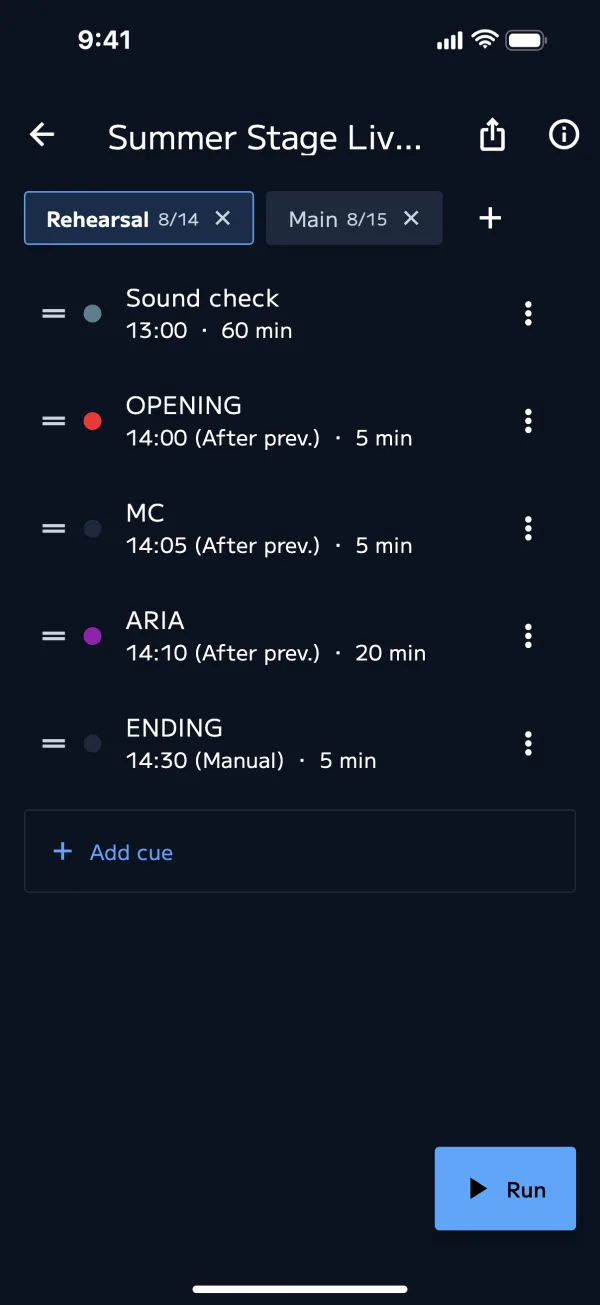
You can add more sheets, for example for rehearsal (Basic allows up to 2 sheets per show). For details, see Shows and cue sheets.
3. Add cues
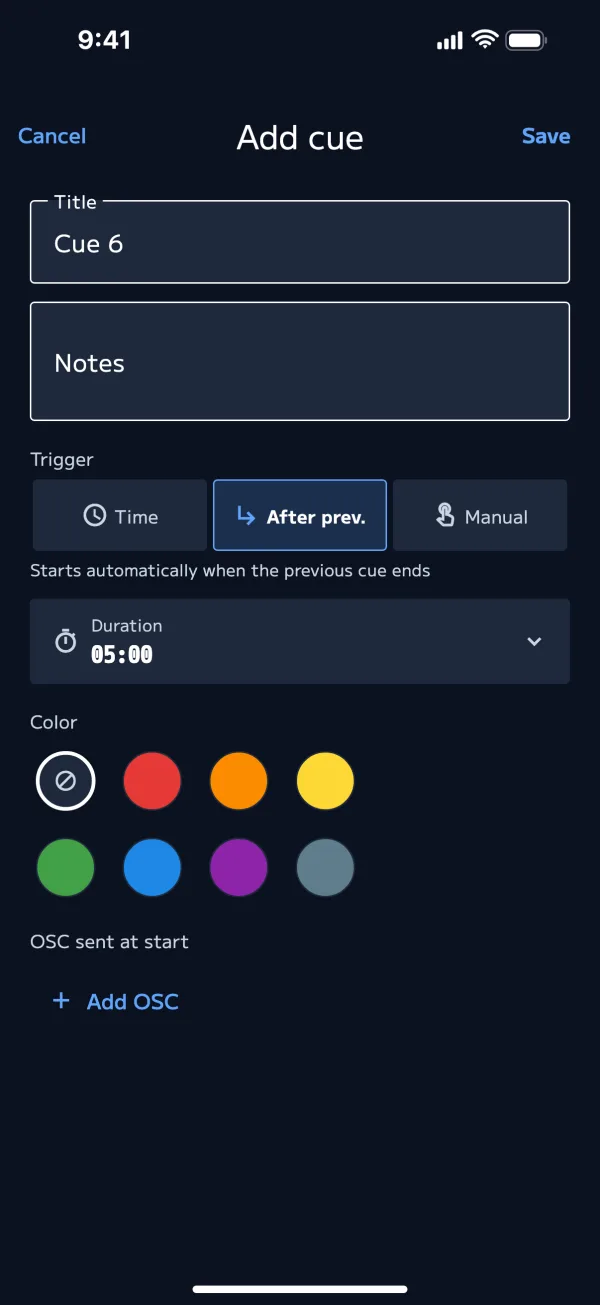
Add cues with + (Add cue) in the editor. Enter the following 3 fields.
- Title: The name of the segment (e.g. Opening)
- Duration: How long the segment runs
- Trigger: How it starts (see the table below)
| Trigger | How it starts | Good for |
|---|---|---|
| Time | Starts automatically at the set time | Fixed times like doors open or curtain |
| After prev. | Starts automatically when the previous cue ends | Segments that run back to back |
| Manual | Starts when you press NEXT | Changeovers, MC and other segments with an unpredictable end |
Cues start automatically only when AUTO is on in the run screen (it's on by default). With AUTO off, everything advances with NEXT.
If the first cue has no start time, the sheet starts at the "Base time" in Show info (ⓘ).
If you already have a cue sheet (PDF, photo, Excel, etc.), you can build all the cues at once with Create with AI.
4. Start the show
When your cues are in place, tap Run in the editor. During the show, you advance with NEXT.
- NEXT: Ends the current cue and starts the next one
- AUTO: When on, "Time" and "After prev." cues start automatically
- Remaining time turns yellow at 2 minutes and red at 30 seconds. After that it keeps counting as "Overtime"
For details, see Run screen.
Display and integration
| What you want | Feature | Chapter |
|---|---|---|
| Show performers the remaining time in big numbers | Performer screen | Messages and the performer screen |
| Put the same screen on your crew's phones | Sharing (host and client) | Sharing |
| Use the same show on your own iPhone and Mac | Show sync | Sharing |
| Run lighting, sound and QLab along with it | OSC output and QLab link (Pro) | QLab and OSC |
Related pages
- Run screen: NEXT, STOP, behind, AUTO, timed starts
- Troubleshooting: For quick lookup during a show