
Run screen
Applies to: iPhone, iPad and Mac 1.3.7 (on Mac, items marked β (Mac) are on Mac from 1.3.7)
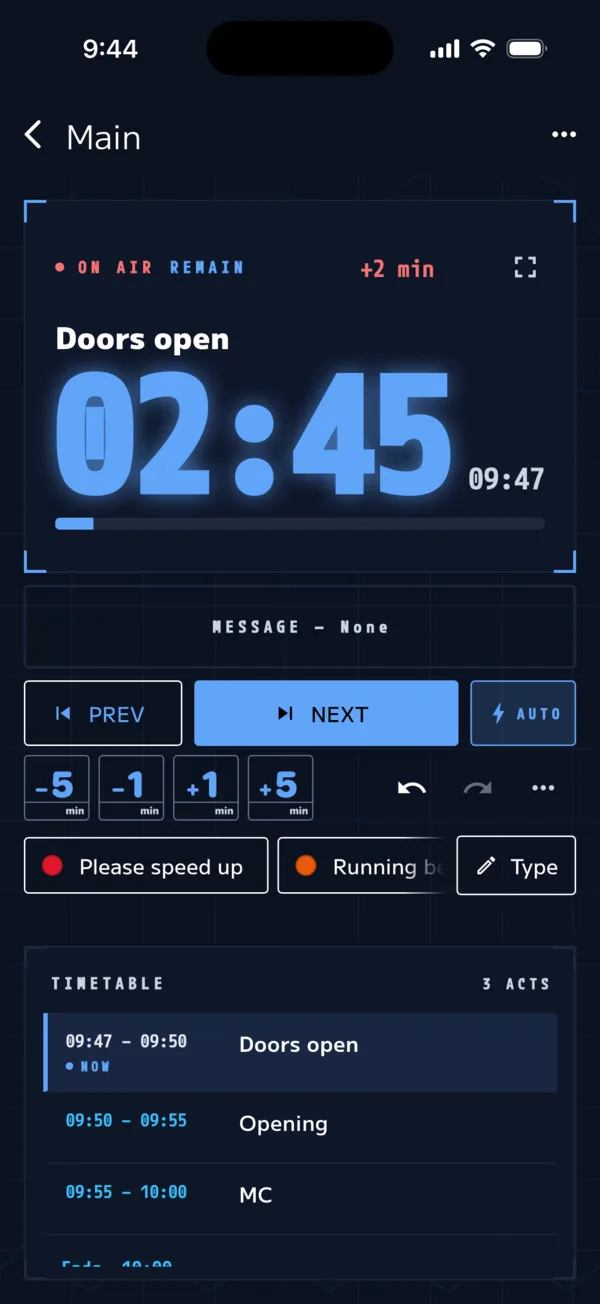
This is the screen you open with Run in the editor. A large timer sits at the top, the control buttons below it, and the cue list to the side (below on a phone).
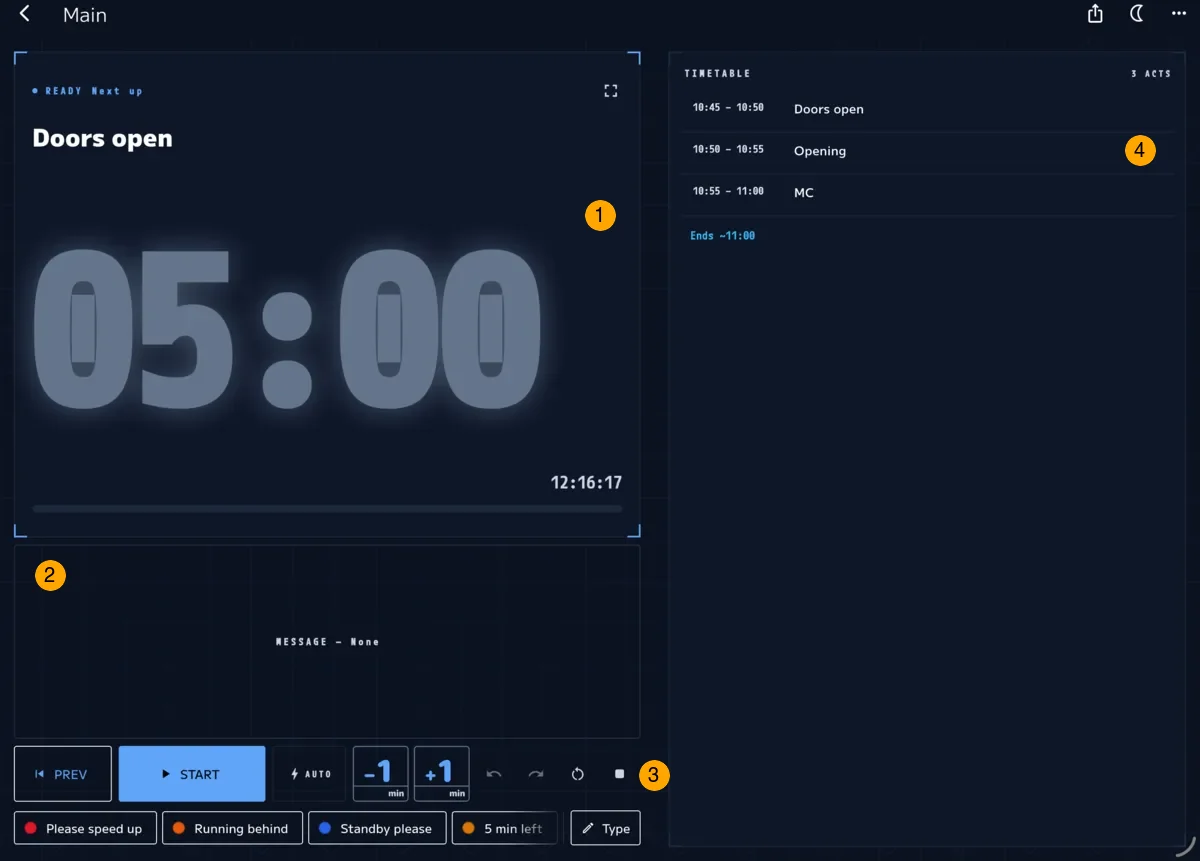
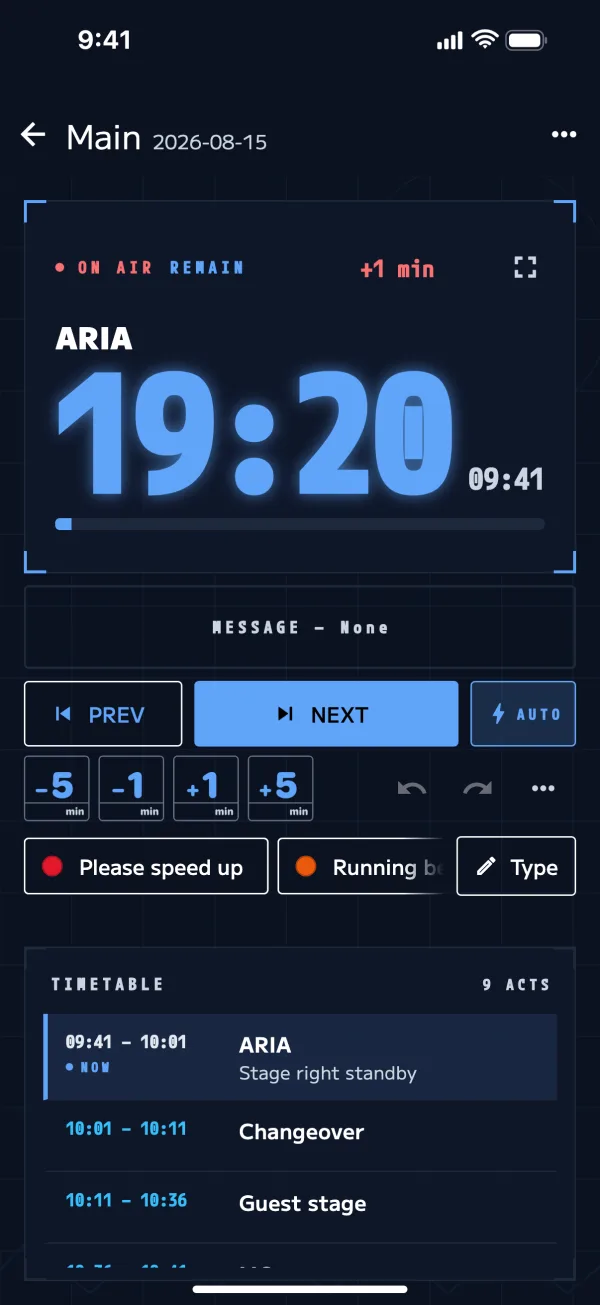
Reading the timer
| Display | Meaning |
|---|---|
| READY / Starts in | Time until the first cue starts |
| ON AIR / REMAIN | Time left in the current cue |
| ON AIR / Overtime | Time past the cue's duration (flashes red) |
| +{n} min / −{n} min | How far behind / ahead of schedule you are (shown when off by 30 seconds or more) |
| Ends ~{time} | When the sheet will end if things keep going as they are |
The timer turns yellow at 2 minutes left and red at 30 seconds left. To change this, use "Warning when remaining (yellow)" and "Critical when remaining (red)" in Show info (ⓘ).
Control buttons
| Button | What it does |
|---|---|
| START / NEXT | Start / end the current cue and go to the next |
| PREV | Restart the previous cue from now |
| AUTO | When on, cues set to "Time" or "After prev." start automatically |
| −1 min / +1 min | Shorten or extend the current cue's duration on the spot (±5 min too on wider screens) |
| ↶ ↷ | Undo / Redo |
| … (More) | Reset run / Stop |
NEXT
Ends the current cue and starts the next one. If the cue runs past its time, wait without pressing; the timer keeps counting as "Overtime". The moment you press NEXT is recorded as the next cue's actual start time.
When AUTO is on and the next cue will start automatically within 10 seconds, NEXT flashes to let you know.
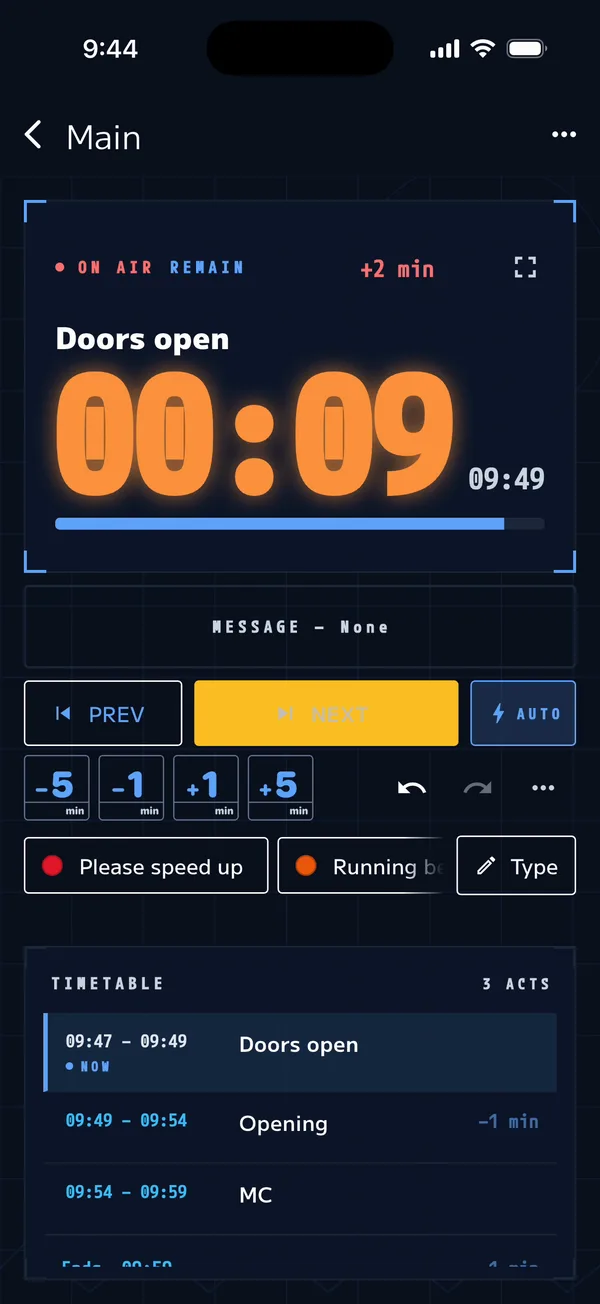
−1 min / +1 min
This adjusts the current cue only. It goes back to normal when the next cue starts. The durations in the schedule do not change.
Undo / Redo
If you press NEXT too many times or similar, use ↶ (Undo) to go back. On a keyboard, use ⌘Z, and ⌘⇧Z to redo.
AUTO (advance automatically)
AUTO is on by default. When AUTO is on:
- "Time" cues start automatically at their set time
- "After prev." cues start automatically when the previous cue ends
- "Manual" cues wait until you press NEXT
When AUTO is off, everything advances with NEXT. You can turn it on or off at any point.
If you turn AUTO on after the scheduled time has already passed, you'll be asked "Sync to schedule?"
| Option | What happens |
|---|---|
| Start from the scheduled position (AUTO on) | Jumps to the cue that should be running now according to the schedule |
| Run automatically from now | Stays on the current cue and advances automatically from here |
Set times and dates
A "Time" cue starts at its set time on the sheet's date.
- Set the date in "Sheet settings" (long-press the sheet in the sheet list, or long-press its tab in the editor)
- With "No date (use any day)", times follow the day you open the sheet
- For a run that goes past midnight, add "+1 day" to the start time
If you open the show's sheet on a rehearsal day, the times may not line up. In that case, turn AUTO off and advance with NEXT, or check the sheet's date.
Fixing behind / ahead
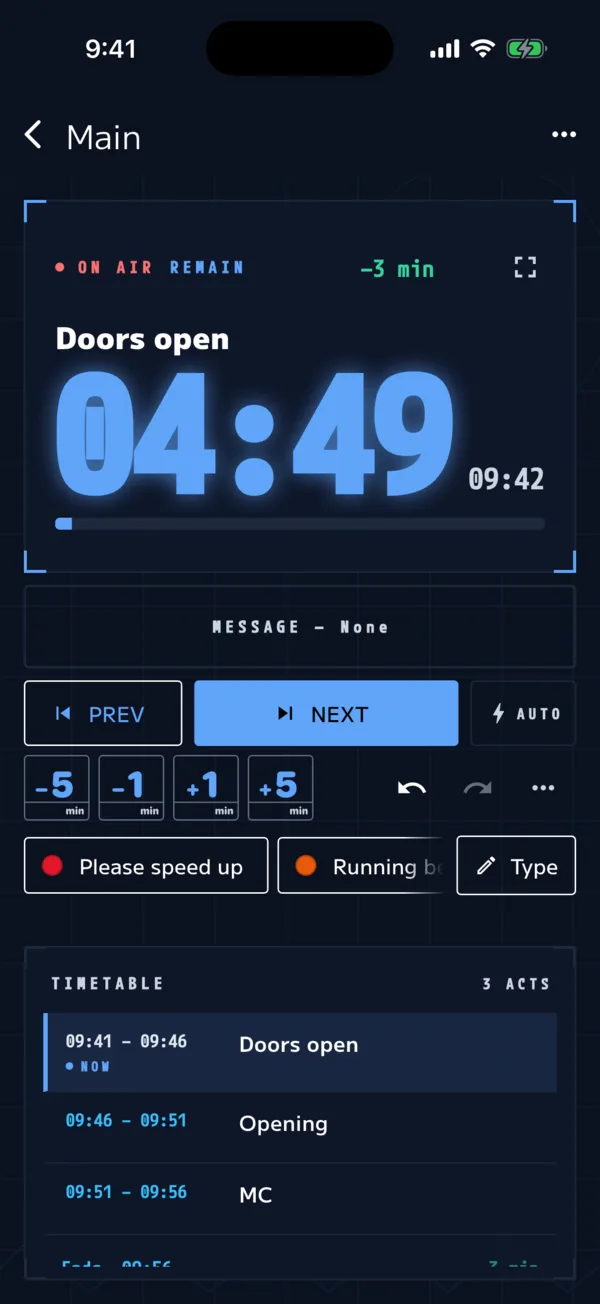
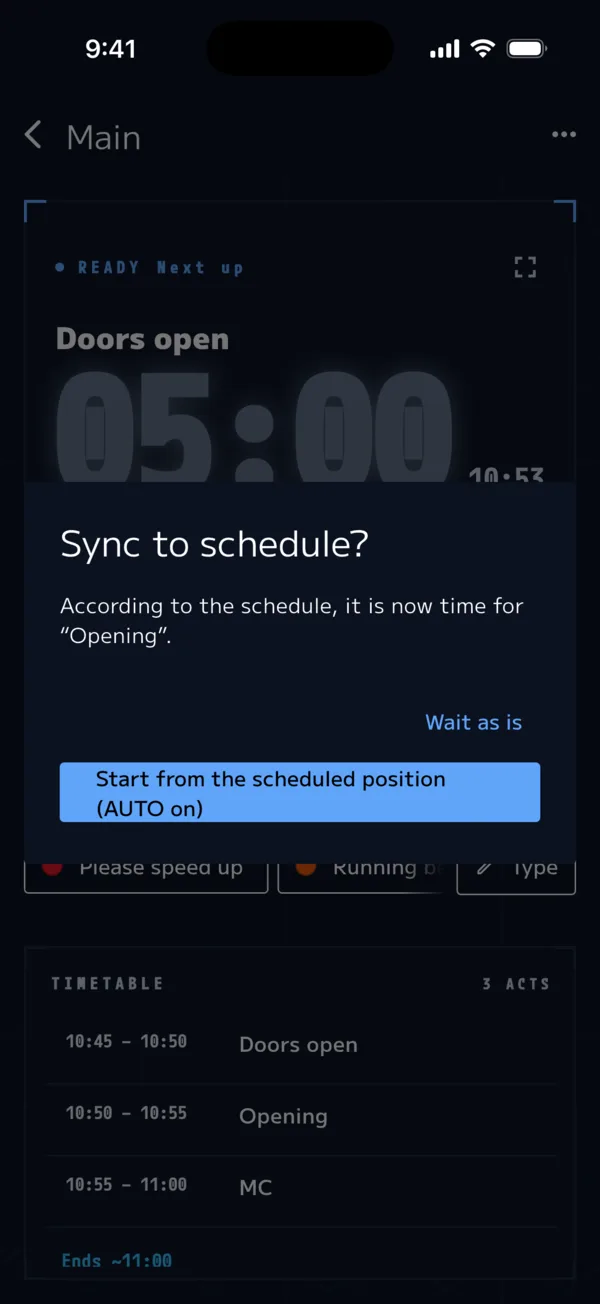
Tap "+{n} min / −{n} min" on the timer to bring up "Sync to schedule?". "Start from the scheduled position (AUTO on)" jumps to the cue that should be running now according to the schedule, and turns AUTO on. To leave things as they are, choose "Wait as is".
When you open the run screen and it is 30 minutes or more off schedule, you can also choose "Shift the schedule to now". This rewrites all the times in the schedule at once, so use it when the show starts very late.
Actions from the cue list
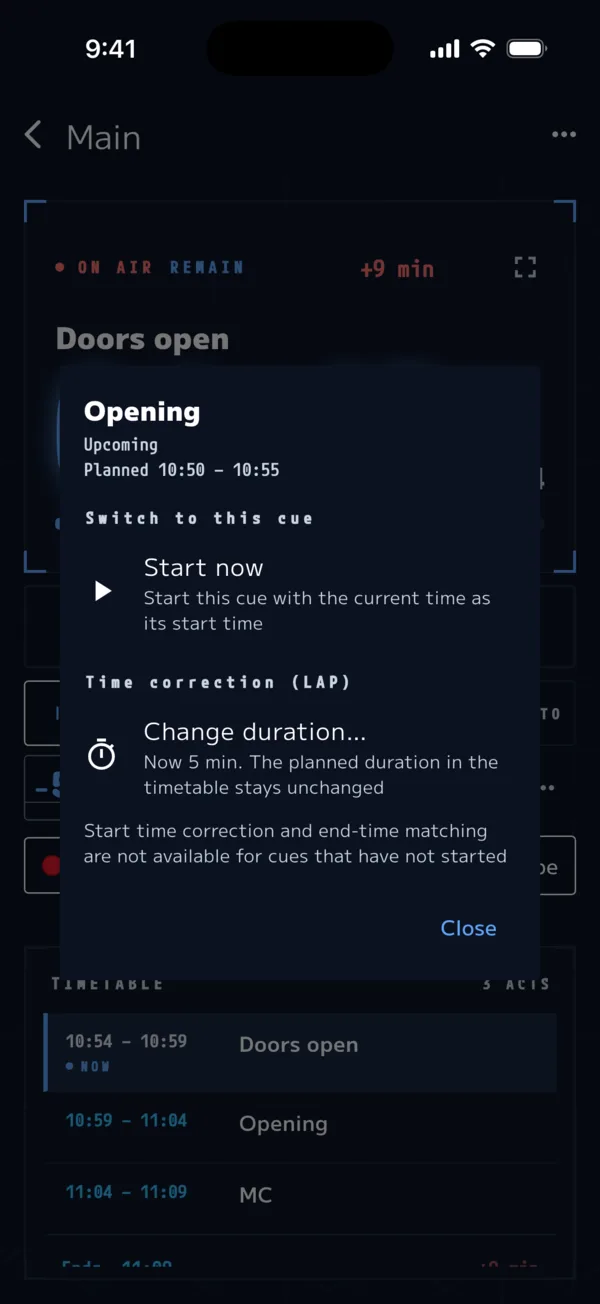
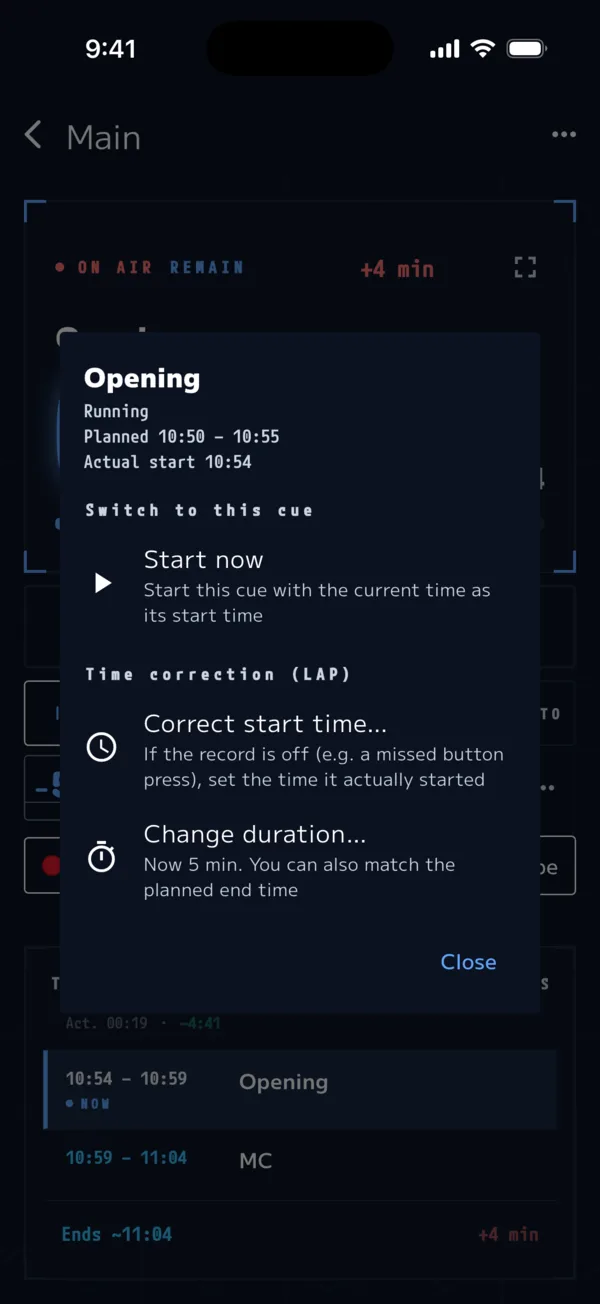
Tap a cue in the list for these actions.
| Action | What it does |
|---|---|
| Start now | Starts this cue from the current time (to skip ahead or go back) |
| Correct start time… | Fixes a record that's off, for example because you forgot to press NEXT |
| Change duration… | Changes the duration for this run only (the schedule does not change). For a cue that has already started, you can also match the planned end time |
Reset and Stop
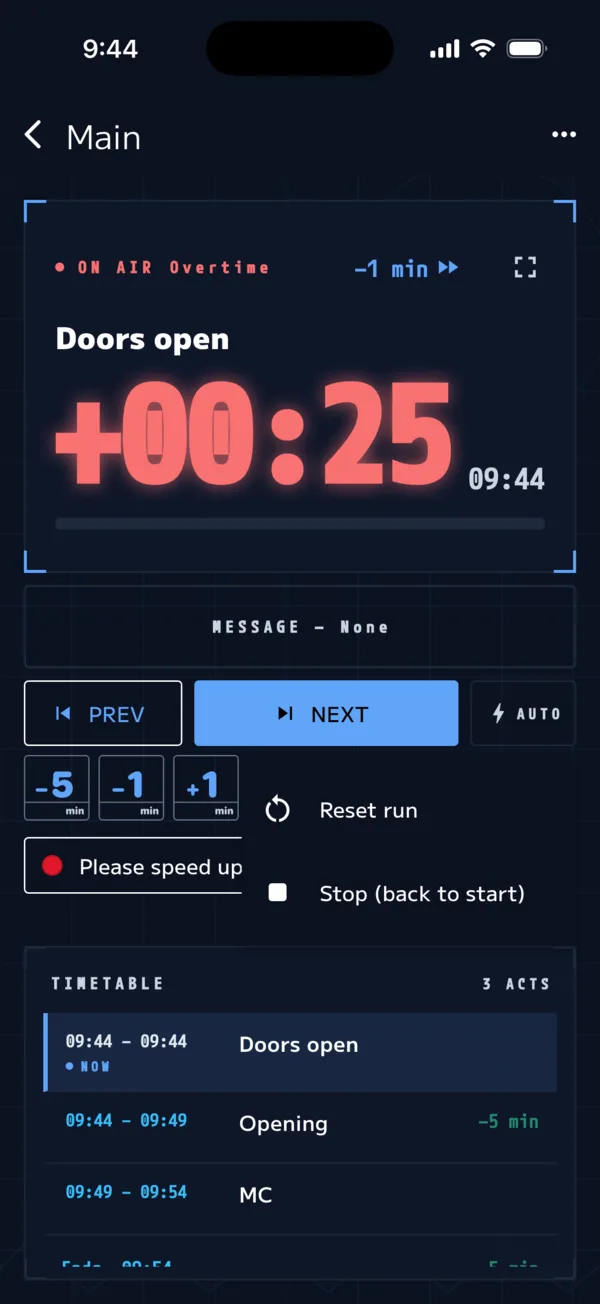
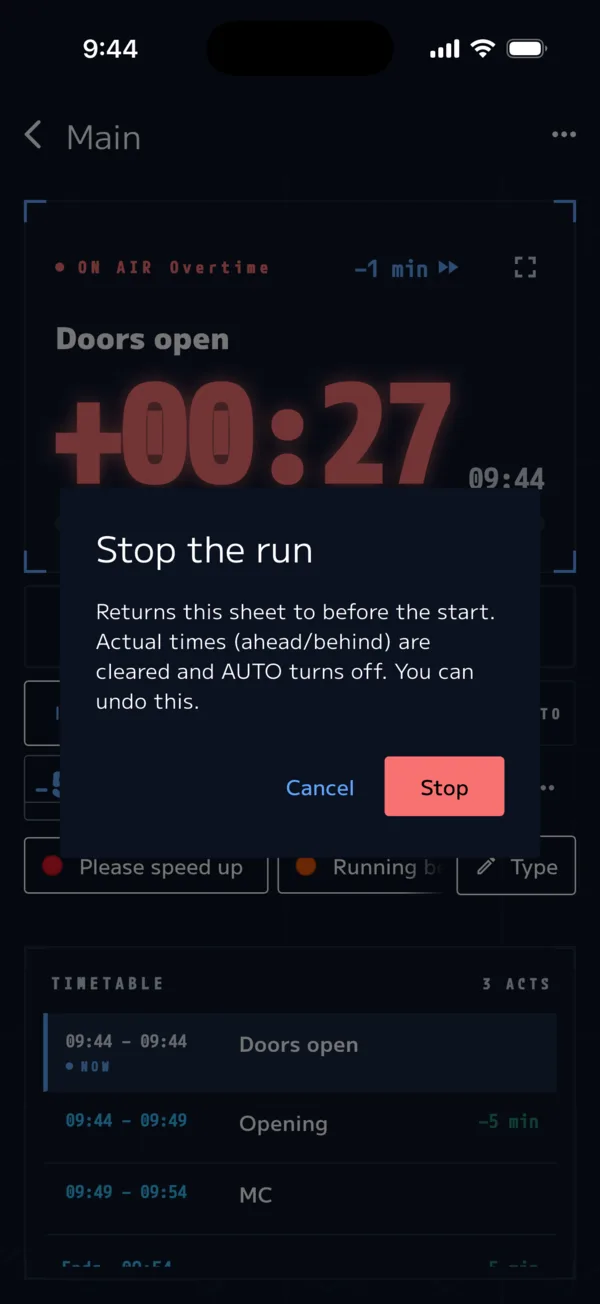
Both are in … (More). A confirmation appears before either action runs.
| Action | What happens |
|---|---|
| Reset run | Restarts the sheet from the beginning. If AUTO is on, it resumes from the cue that matches the current time |
| Stop | Returns the sheet to before the start. Behind/ahead records are cleared and AUTO turns off |
With QLab integration (β on Mac), if "Panic on STOP" is on, Stop also sends a panic to QLab (QLab and OSC).
Keyboard (iPad and external keyboards. β on Mac)
| Key | What it does |
|---|---|
| Space | NEXT |
| ← → | Move the selection in the list (does not change the run) |
| T | Choose a message |
| F | Flash the message (5 seconds) |
| ⌘ + . | Stop (with confirmation) |
| ⌘Z / ⌘⇧Z | Undo / Redo |
Keys don't work while you're typing text. For details, see Keyboard shortcuts.
Pre-show checklist
- The sheet's date (or "No date") is correct
- You've decided whether to use AUTO (on by default; turn it off if you won't use it)
- "Keep screen on during a run" is on in Settings
- Indoor display for a dark venue, Outdoor for sunlight (☾ / ☀)
- If you're sharing, the run screen is open on the host device
Troubleshooting
| Problem | Solution |
|---|---|
| Pressed NEXT too many times | ↶ (Undo) |
| Forgot to press, so the start record is off | Tap the cue → "Correct start time…" |
| The show started much later than planned | Tap behind/ahead → "Start from the scheduled position", or "Shift the schedule to now" when you open the screen |
| It moves to the next cue on its own | Turn AUTO off |
| A "Time" cue doesn't start | Check that AUTO is on and that the sheet's date is today (or "No date") |
| You want to jump to a different cue | Tap the cue → "Start now" |