
Messages and the performer screen
Applies to: iPhone, iPad and Mac 1.3.7 (on Mac, items marked β (Mac) are on Mac from 1.3.7)
This chapter covers messages, short notes like "Please speed up" for performers, and the performer screen, which shows the time left in large type.
Showing a message
Common phrases (presets) are lined up below the message area on the run screen.
- Tap a preset to show it right away
- Tap the same preset again to hide it
- To write your own, tap Type → enter text, choose a Background color, and tap Show (up to 20 characters; past 10 characters the message scrolls sideways on the host screen, the performer screen and the input preview)
When no message is showing, it reads "MESSAGE — None". To clear a message, tap the × to its right.
A message appears with the same text and color on the host's run screen, on client screens, and on the performer screen. Only the host can control it.
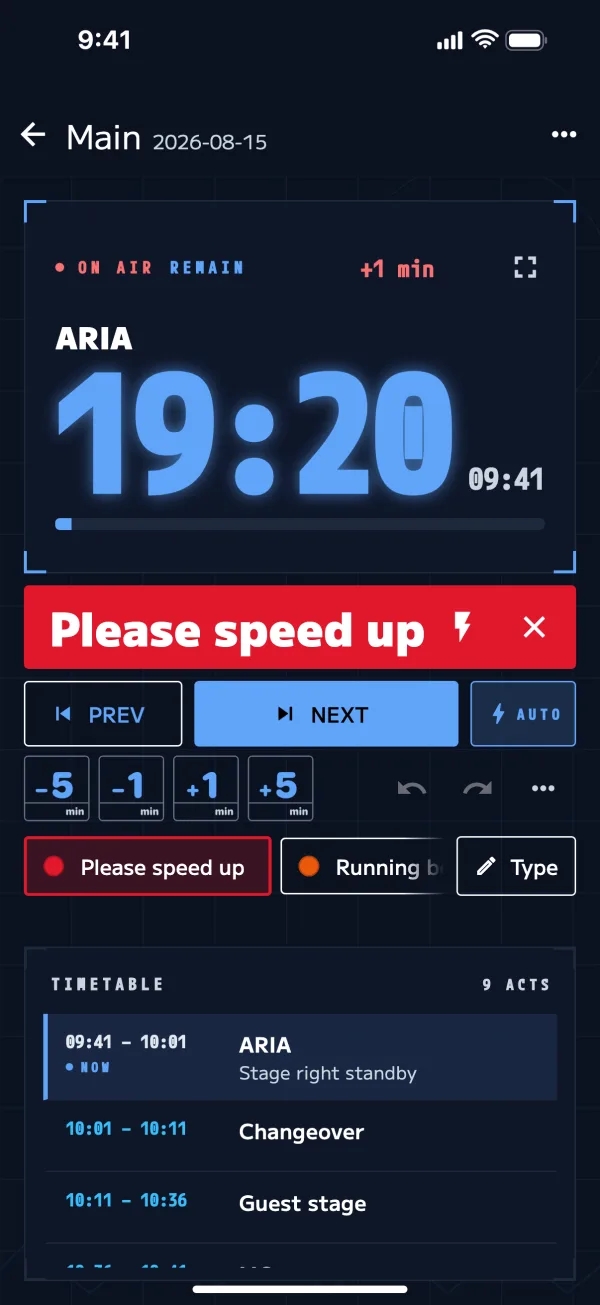
Built-in presets
Please speed up / Running behind / Standby please / 5 min left / Changeover / Break
In "Message presets" in Settings, you can add (Add), edit (tap), and delete (×) presets. Each can be up to 40 characters, and you can choose its background color.
Flashing β (Mac)
Press ⚡ (Flash for performers (5 s)) to the right of the message to make it flash for 5 seconds. Use it to get a performer's attention. Changing or clearing the message also stops the flashing.
Performer screen
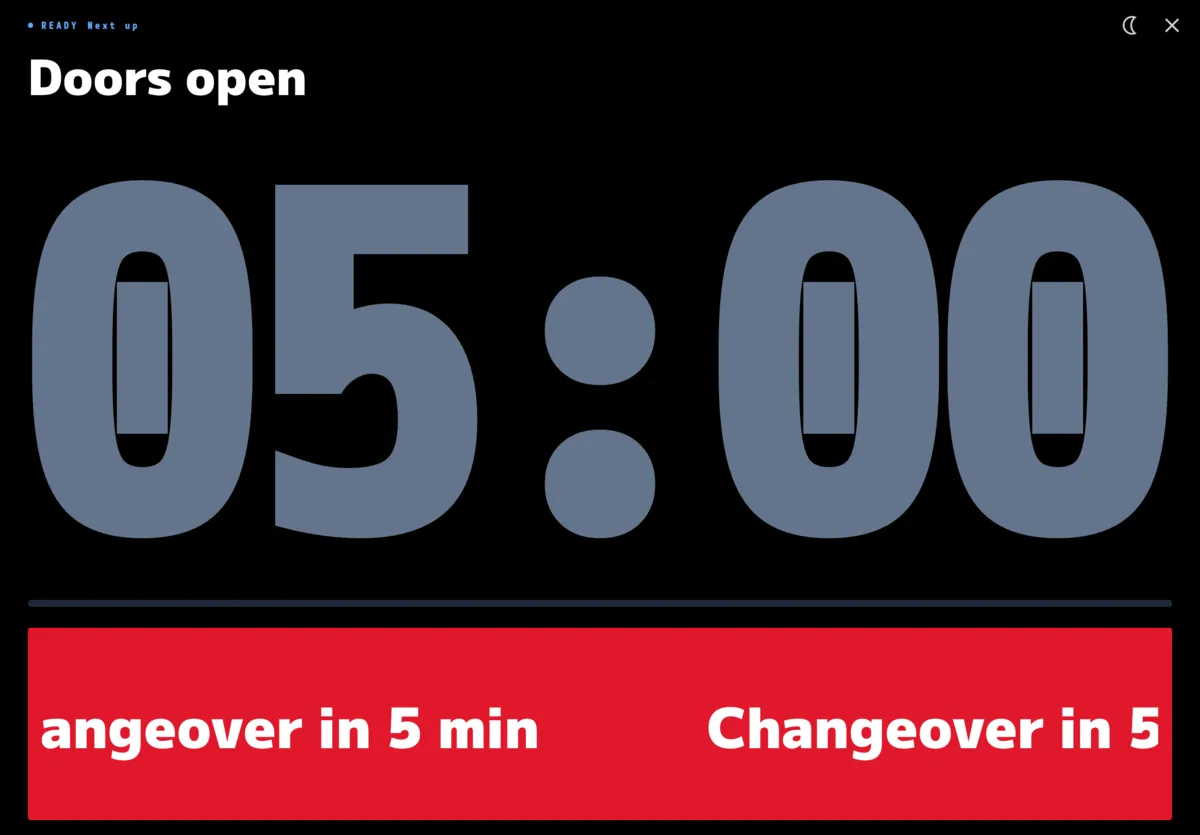
This screen shows performers only the current cue's name and the time left, in large type. It doesn't show the schedule or behind/ahead. Messages appear at the bottom.
- Open: the fullscreen icon at the top right of the timer on the run screen ("Artist Remain Time (fullscreen)")
- Close: the × at the top right (Esc on a keyboard)
- On iPhone it opens in landscape. Use the button at the top right to switch between portrait and landscape
- Both hosts and clients can open it. For example, set up an iPad in the wings as a client and keep the performer screen open on it
Performer brightness β (Mac)
On the host, go to … (More) → "Performer brightness" and choose 100% / 50% / 20% / Blackout. Use it when the screen is too bright in a dark house.
- This dims client screens and the performer screen. The host's run screen does not dim
- It doesn't change the device's screen brightness; it lays a black layer over the screen
- Even in Blackout, you can still press the back and close buttons
Indoor / Outdoor display
| Display | Best for |
|---|---|
| Indoor (☾) | Dark venues. Black background |
| Outdoor (☀) | Sunlight. White background |
Switch with ☾ / ☀ on the run screen and the performer screen (on iPhone's run screen, it's in … (More)). To set the default, choose Indoor / Outdoor / Auto in "Appearance" in Settings (Indoor by default).
Keyboard
| Key | What it does |
|---|---|
| T | Choose a message |
| F | Flash the message (5 seconds) |
| Esc | Close the performer screen |
Keyboard control on Mac is β. For details, see Keyboard shortcuts.