
Sharing (show the same screen on other devices)
Applies to: iPhone, iPad and Mac 1.3.7 (on Mac, items marked β (Mac) are on Mac from 1.3.7)
The device that controls the run is the host. Devices that only watch are clients.
| What you want to do | What to use | Host requirements | Client requirements |
|---|---|---|---|
| Show the same run screen on your crew's phones | Share code (over the internet) | Pro, signed in | Any plan, signed in |
| Show it on nearby devices at a venue with no internet | Nearby sync | Pro | Any plan, sign-in not required |
| Use the same show on your own iPhone, iPad, and Mac | Same-account sync | Signed in (Basic or higher) | — |
Start sharing (host)
- On the run screen, press Share
- iPad and Mac: the share icon in the top bar
- iPhone: "Share" in … (More)
- You can also open it from on a show card in the show list → "Share (Pro)", or from the share icon in the editor or the sheet list
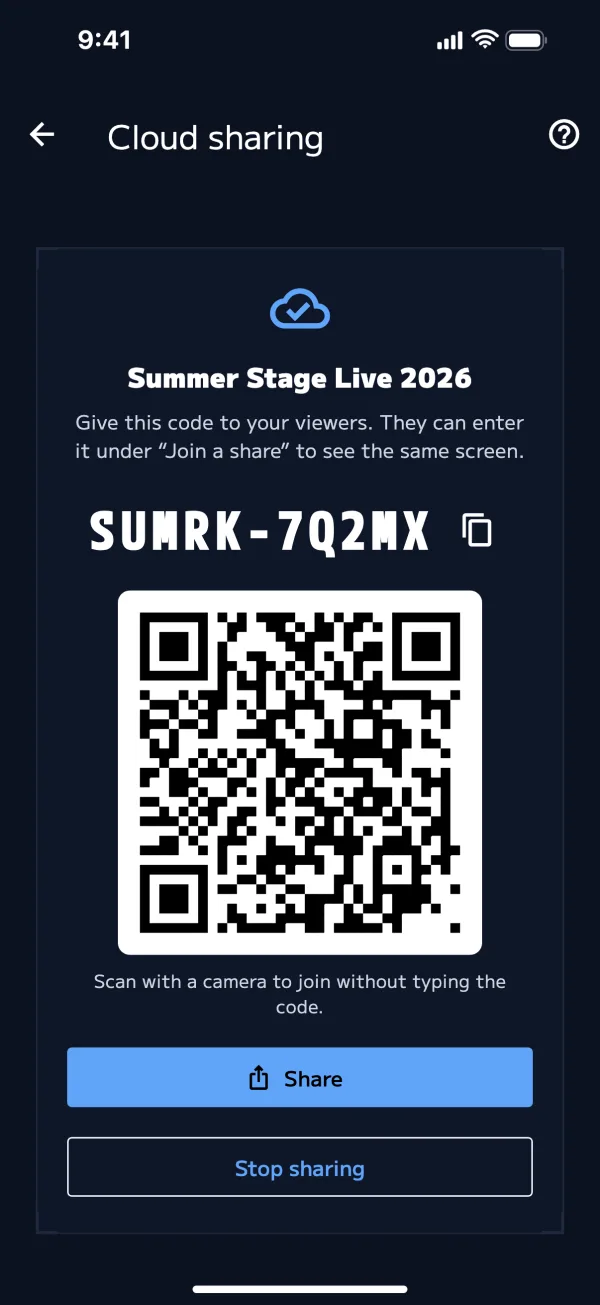
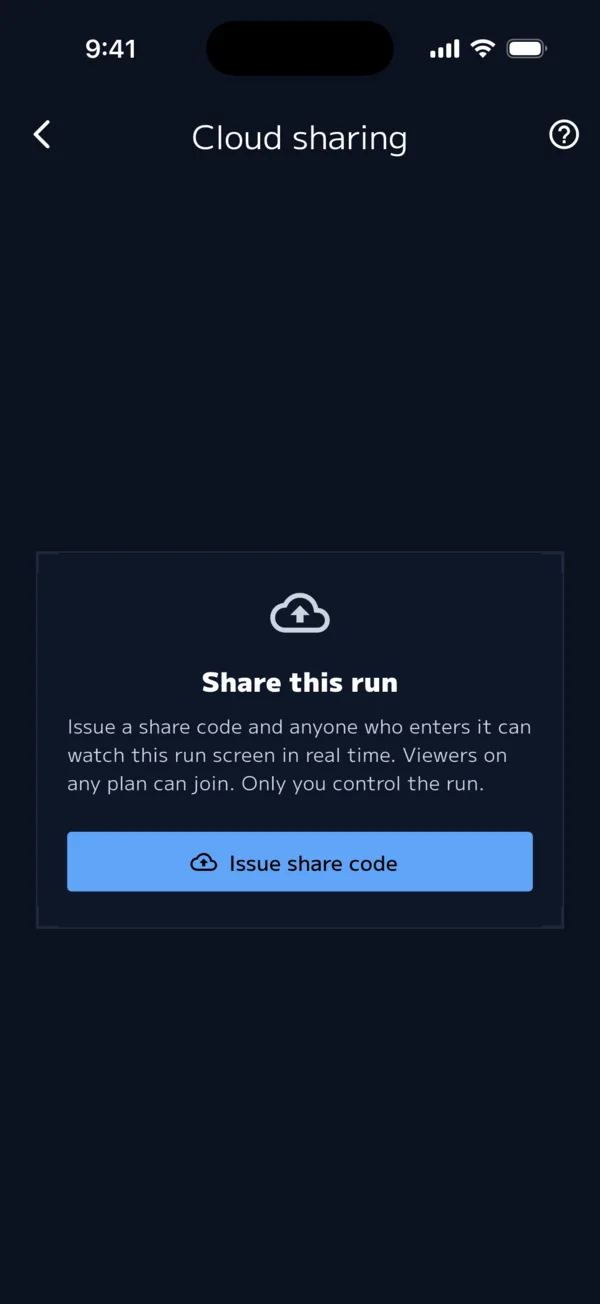
- Issue share code
- Give the code to your viewers
- Copy code: copies the 10-character code (for example, ABCDE-FGHJK)
- Share: sends an invitation with the code, a link, and where to download the app, by Messages or similar
- Join QR code: viewers scan it with their camera to join without typing the code
If you opened sharing from the run screen, the timer keeps running while the sharing screen is open.
Stop sharing
On the sharing screen, tap Stop sharing → Stop. Screens watching with that code stop updating (they show "This share has ended.").
Anyone who has the code can see the contents of your schedule. Stop sharing when the show is over.
Join a share (client)
- Join shared at the bottom of the show list
- If you aren't signed in, start from "Create an account to share your CUE SHEET". After you sign in, you go on to the join screen
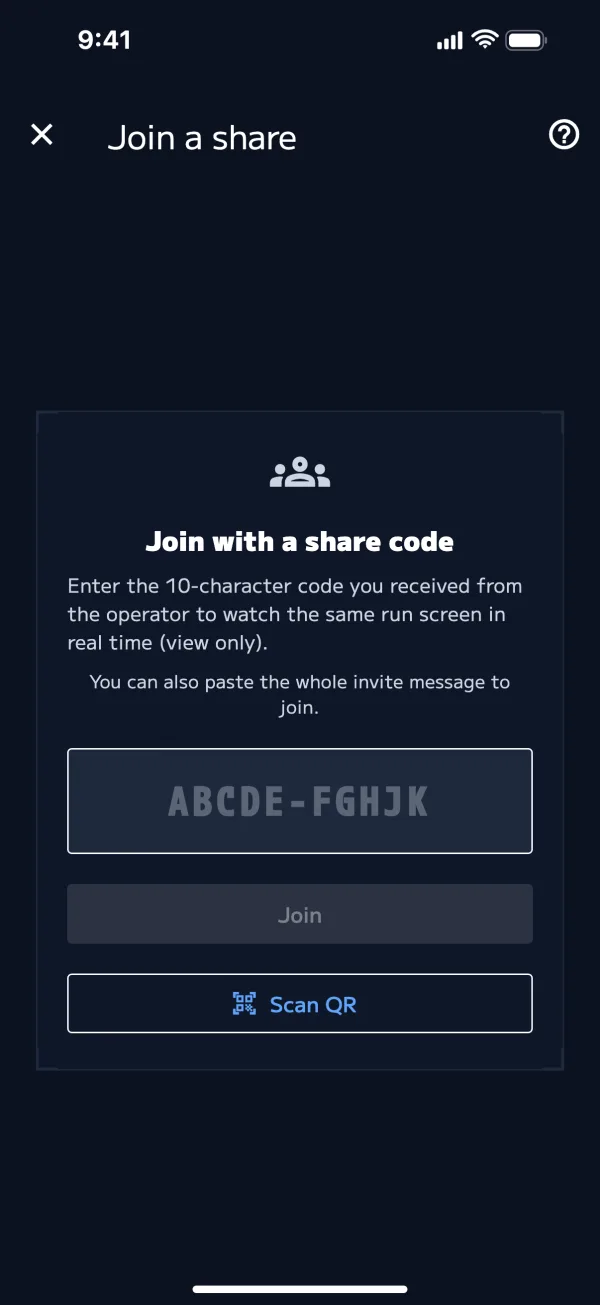
- Enter the 10-character code and tap Join
- You can also paste the whole invitation to join
- You can also scan the QR code with Scan QR
- If you open the invitation link, the join screen opens with the code already filled in. Tap Join
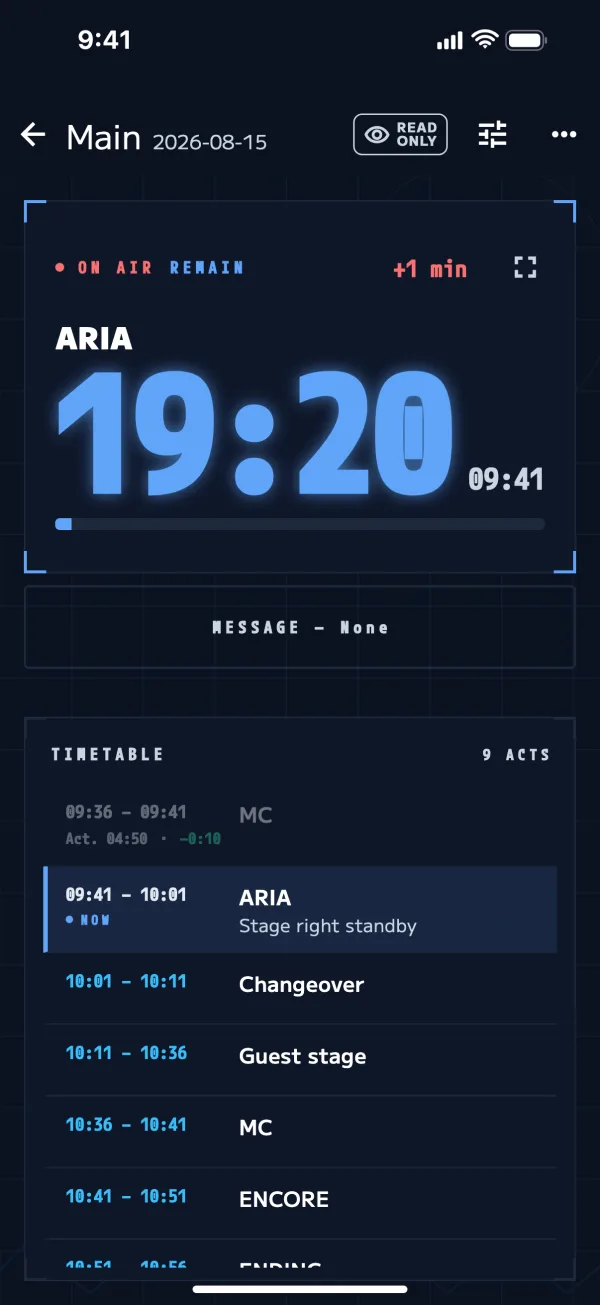
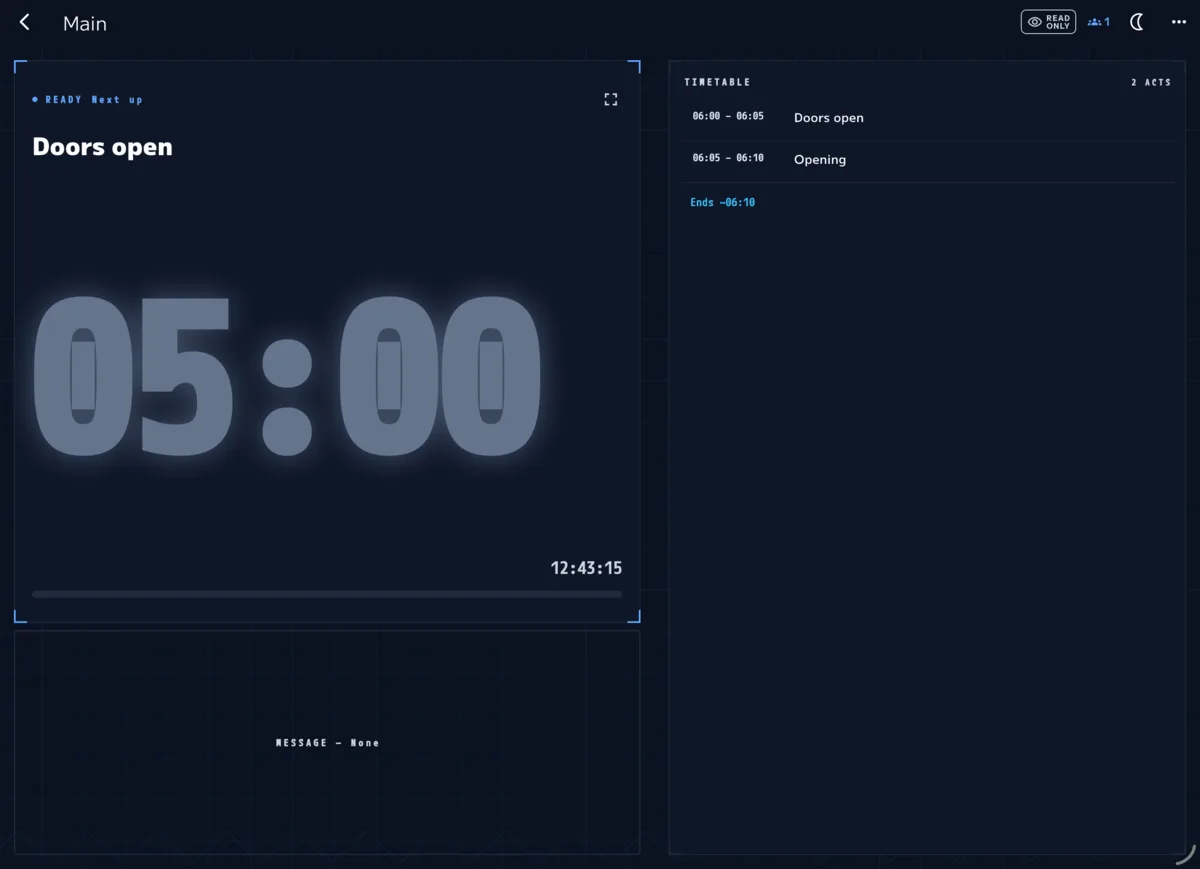
A client's run screen shows an eye icon and READ ONLY. Clients can't control the run.
| What clients can do | What clients can't do |
|---|---|
| Watch the run screen, open the performer screen, switch Indoor/Outdoor | Control the run (NEXT and so on), control messages, set performer brightness, share |
Pro clients can send QLab and OSC from their own device (QLab and OSC).
Joined shares β (Mac)
You can reopen a share you've joined from "Joined shares" at the top of the show list. It stays there for 3 days after you last used it. When you no longer need it, tap → Close (it is also removed from the list on your other devices with the same account).
Nearby sync (no internet)
Nearby sync keeps the run in sync between nearby iPhones, iPads and Macs without an internet connection. It works when "Sync with nearby devices" is on in Settings (on by default).
- The host must be on Pro, and the share must have been created on that device. Issue the share code somewhere with internet before you get to the venue
- Keep the sharing run screen open on the host device
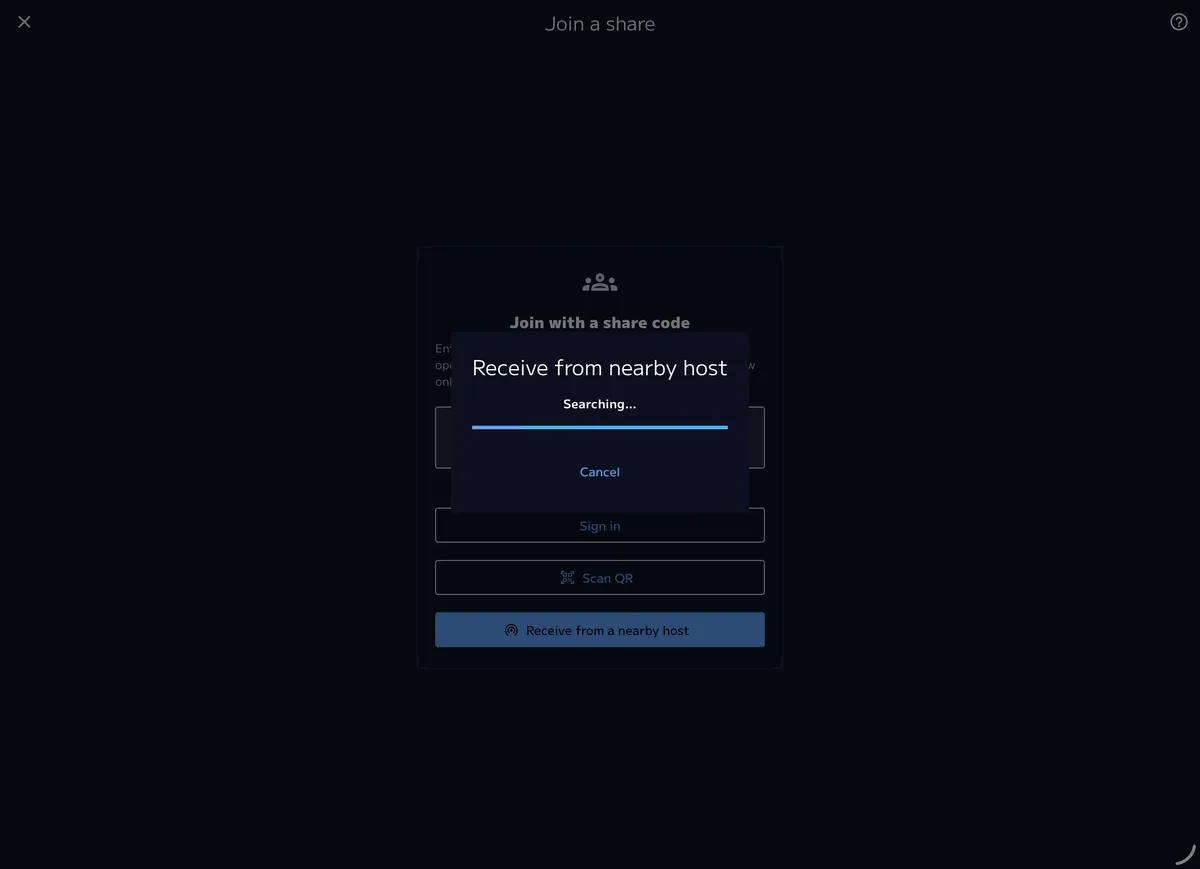
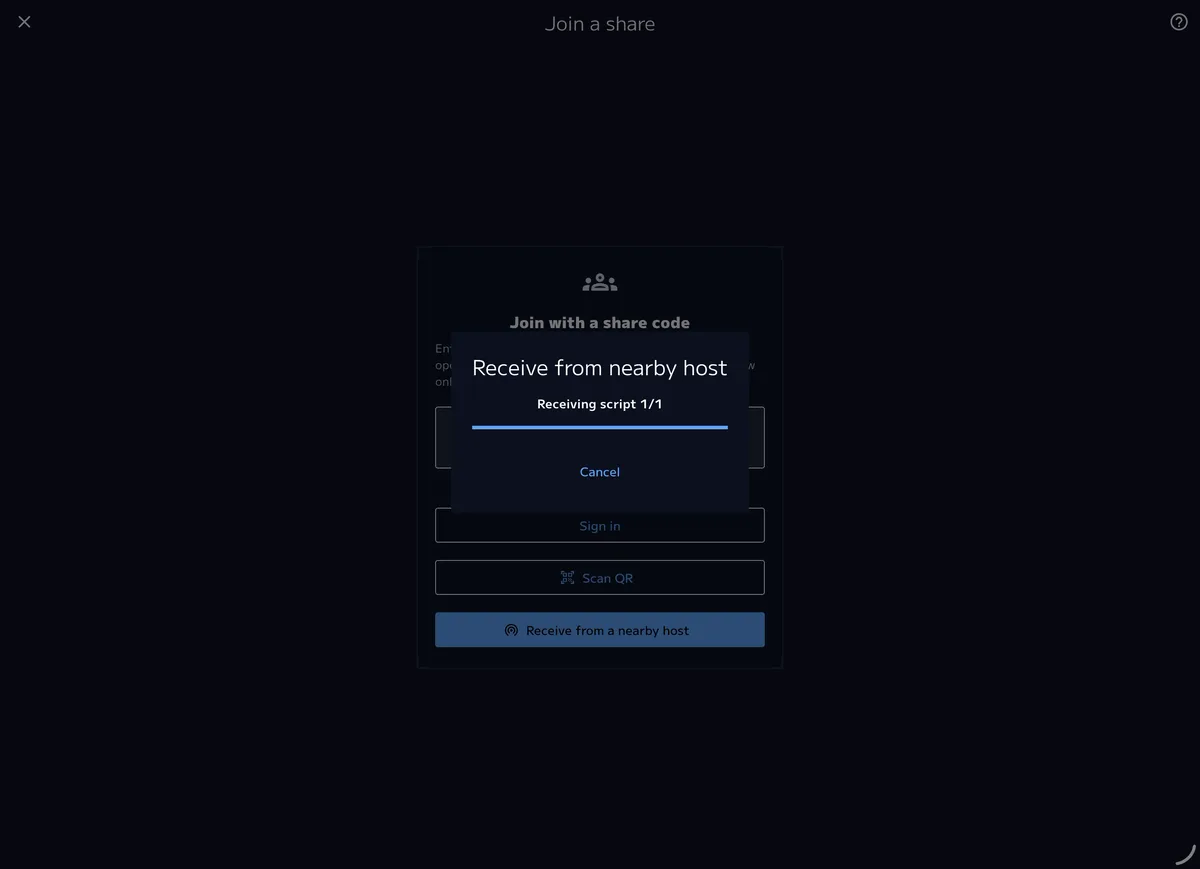
- On the client, tap Receive from a nearby host on the join screen (it appears when you aren't signed in or can't connect to the internet). It goes "Searching…" → "Host found" → "Receiving script" → "Received"
- The first time, if you're asked for "Local Network" permission, tap Allow
- Clients also relay to each other, so devices a little farther from the host still get the run
"Host key changed" message
This means a different device from before has connected as the host. If you know why, such as the host device having been reinstalled, tap Trust this host. If you don't, don't trust it, and check with the host.
Syncing your own devices
On iPhones, iPads, and Macs signed in with the same account, you can use the same show without a share code. This works on Basic too.
- Show contents: saved to your account and delivered to your other devices (Show sync)
- The live run β (Mac): while the run screen is open, NEXT and AUTO changes reach your other devices right away. This works both over the internet and between nearby devices
- If both devices are used while they're disconnected, the run from the device used last is kept
Connection status
A connection icon appears at the top of the run screen. Press and hold it for an explanation.
| Icon | Meaning |
|---|---|
| Green cloud (LIVE) | Connected over the internet |
| Person icon + number | Number of clients connected nearby |
| Device icon + number | Number of your own devices connected nearby |
| Gray dot | Connecting / Offline |
| Red | Connection error |
Troubleshooting
| Problem | Solution |
|---|---|
| "Share not found." | Check the code. Ask whether the host has stopped sharing |
| "This share has ended." | Get a new code from the host |
| No nearby host is found | Ask the host to open the sharing run screen on their device. Check that nearby sync and Local Network permission are on |
| "Sign in to join over the cloud." | Sign in. If there's no internet, use Receive from a nearby host |
| The QR code won't scan | Allow camera access in the Settings app. You can also type the code to join |